
Microsoft Edge's password manager is a convenient feature that millions of users rely on every day. What most people do not know is that when Edge loads those saved credentials, whether for autofill or during a browsing session, every single one of them is temporarily stored in cleartext inside the browser's process memory. No encryption, no obfuscation, just plaintext usernames and passwords sitting in RAM.
This is not a theoretical risk. A publicly available proof of concept tool called EdgeSavedPasswordsDumper, published by security researcher L1v1ng0ffTh3L4N on GitHub, demonstrates exactly how easy it is to extract these credentials from a running Edge process. On a terminal server or shared workstation, an attacker with administrator rights can silently dump the saved credentials of every logged-on or disconnected user. Microsoft has acknowledged this behaviour and confirmed it is by design.
This article explains how the technique works, what the real-world impact is, and what your organisation can do to reduce the risk. Credit goes to the original researcher for the responsible disclosure and educational publication of this finding.
Background
How Edge stores and uses saved passwords
When a user saves a password in Microsoft Edge, it is written to a SQLite database on disk with AES-256-GCM encryption, protected by the Windows Data Protection API (DPAPI). This part of the storage mechanism is reasonably well designed. The problem arises not in how passwords are stored, but in how they are used.
When Edge starts up and loads the Microsoft Password Manager feature, including Autofill, it decrypts all stored credentials and loads them into the memory of the parent Edge process. From that point forward, every saved password is present in the process memory in plaintext, ready to be read by anyone with sufficient access.
The credential data lives in memory for as long as Edge is running. This includes sessions that have been minimised, sessions belonging to other users on a terminal server, and sessions that have been disconnected but not fully closed.
Why this is different from a database attack
Most credential theft techniques targeting browsers focus on reading the encrypted SQLite database from disk and decrypting it using DPAPI. That approach requires running as the same user whose credentials you want to steal, because DPAPI keys are tied to the user account.
Memory scraping is fundamentally different. Once you have administrator rights on the machine, you can open and read the memory of any process belonging to any user. The credentials in Edge's process memory are already decrypted. There is no need to break any cryptography, you simply read what is already in plaintext.
|
Technique |
Description |
|
Database attack (T1555.003) |
Reads encrypted SQLite file, requires DPAPI decryption as the same user |
|
Memory scraping (T1003) |
Reads plaintext credentials directly from process memory, requires admin rights only |
How It Works
The tool and its requirements
EdgeSavedPasswordsDumper is a C#/.NET 3.5 proof of concept that targets this behaviour. It was intentionally built on .NET 3.5 to reduce the likelihood of detection by AMSI (Antimalware Scan Interface). The tool requires the following:
- Microsoft Edge version 147.0.3912.98 or older
- .NET Framework 3.5
- Administrator rights on the target system
On a personal workstation, this means an attacker needs to have already achieved local admin access. On a terminal server, this is where the risk becomes severe: a single compromised admin account gives access to the Edge process memory of every user currently or recently logged on.
Process memory inspection step by step
The technique follows a straightforward sequence using standard Windows API calls:
Step 1 - Enumerate all running msedge.exe processes on the system, including those belonging to other user sessions.
Process[] edgeProcesses = Process.GetProcessesByName("msedge");Step 2 - Open each process with PROCESS_VM_READ and PROCESS_QUERY_INFORMATION rights using OpenProcess().
IntPtr hProcess = OpenProcess(PROCESS_ALL_ACCESS, false, (uint)proc.Id);
Step 3 - Walk through the memory regions of each process using VirtualQueryEx() to identify readable memory segments.
VirtualQueryEx(hProcess, address, out memInfo, (uint)Marshal.SizeOf(memInfo));
Step 4 - Read each memory region with ReadProcessMemory() and scan the raw bytes for credential patterns typically sequences that resemble URLs followed by username and password strings.
ReadProcessMemory(hProcess, memInfo.BaseAddress, buffer, memInfo.RegionSize, out bytesRead);
Step 5 - Output any identified credentials to the console or a file.
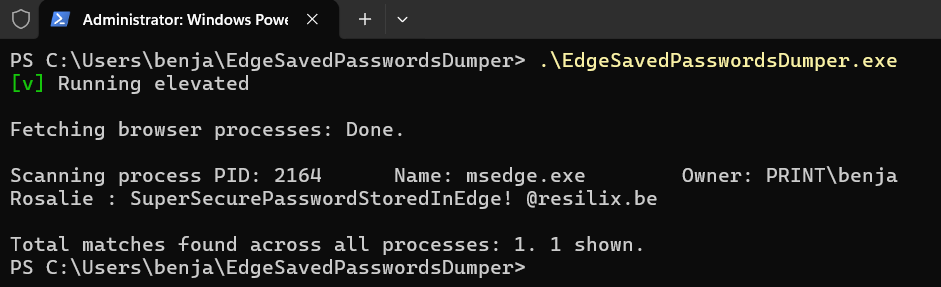
The first screenshot shows the tool running with administrator privileges. Edge process PID 2164 is identified, owned by PRINT\benja. The tool extracts the credential in cleartext directly from process memory: account Rosalie with password SuperSecurePasswordStoredInEdge! for resilix.be, no decryption, no database access, no DPAPI involvement.
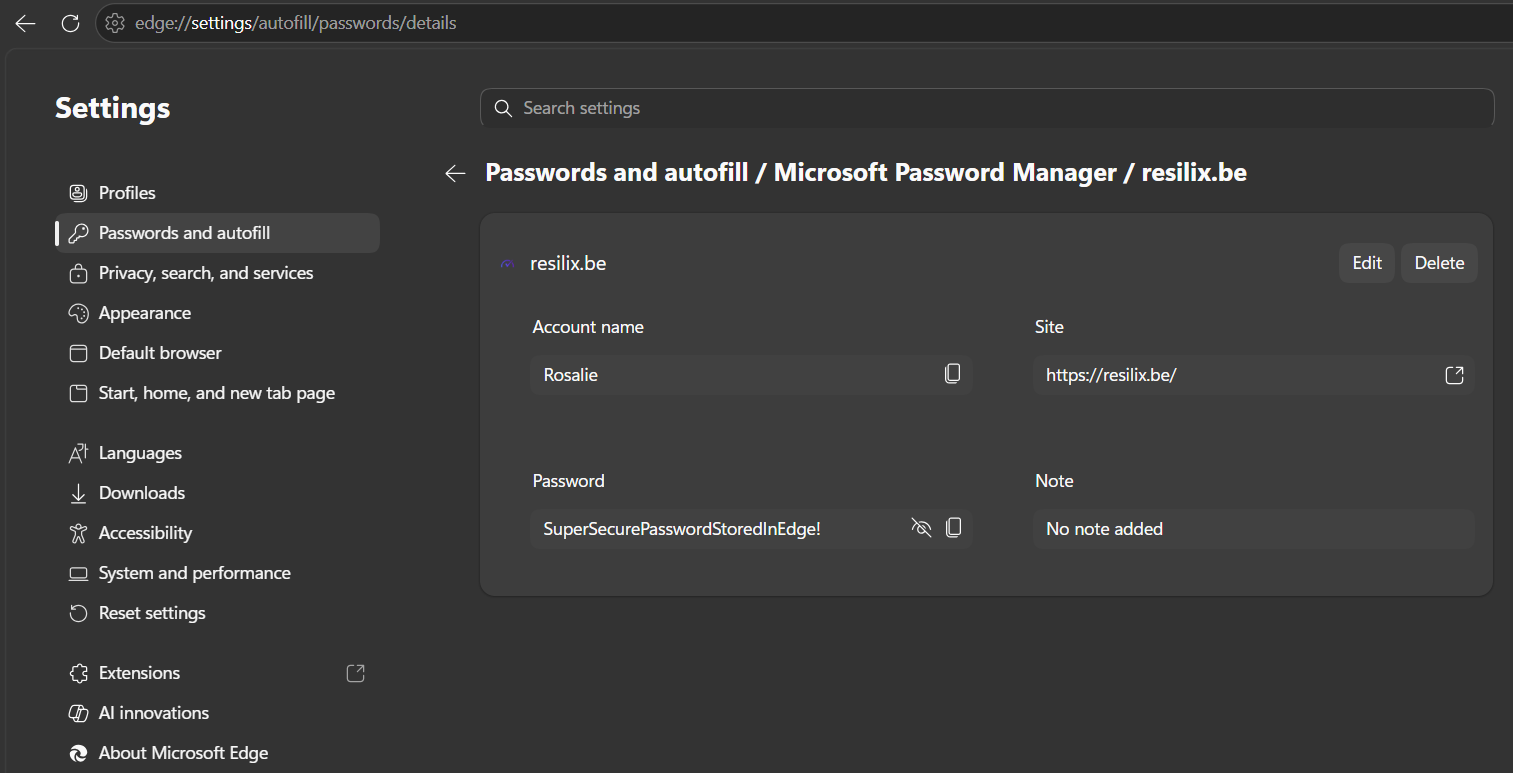
The screenshot below shows the same credential as stored in Edge's password manager under edge://settings/autofill/passwords/details. The password is identical. This confirms that what Edge displays as a saved password behind a password field is simultaneously present as plaintext in the parent Edge process memory, readable by any process with administrator rights on the same machine.
Impact
Why this matters in a real environment
The risk this technique introduces depends heavily on the environment. On a standalone personal workstation, an attacker would first need to achieve local admin access before being able to run the tool. In that scenario, credential theft from the browser is one of many post-exploitation options and may not be the most impactful.
The picture changes significantly in shared environments. Terminal servers and Remote Desktop Services hosts are commonly used in enterprise environments, and they concentrate both users and credentials on a single system. A single compromised administrator account on such a server gives an attacker access to the decrypted Edge memory of every user with an active or disconnected session.
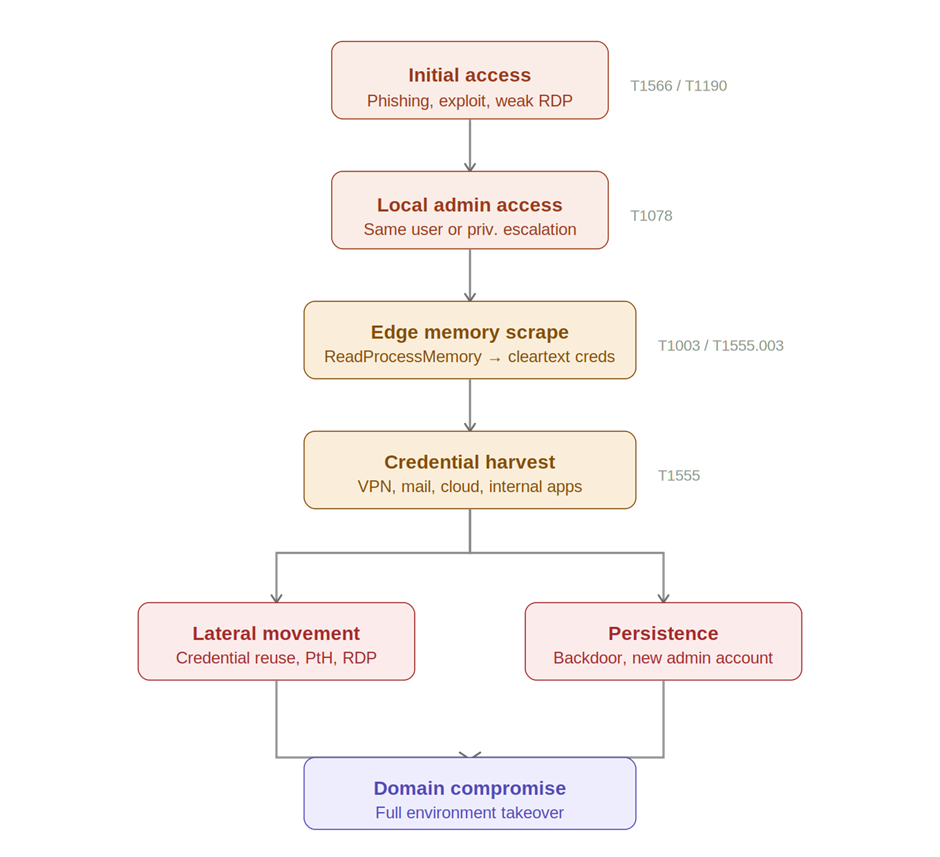
Consider what is typically stored in browser password managers in a corporate context: internal application logins, VPN credentials, cloud platform access, email accounts, and sometimes domain credentials. A single successful dump can provide everything an attacker needs for lateral movement, persistence, and escalation.
Attack scenario
The following sequence illustrates how this technique fits into a realistic attack chain:
Mitigation
Do not store credentials in browser password managers
The most effective mitigation is to stop using the browser as a credential store for sensitive accounts. Enterprise environments should enforce the use of a dedicated privileged access management solution or an enterprise password manager. These tools do not load all credentials into process memory simultaneously and provide additional controls such as session recording, approval workflows, and time-limited access.
This is not just a technical recommendation, it is a governance decision. Many organisations have implicit policies that allow browser password storage simply because nobody has explicitly prohibited it. Making the policy explicit, communicating it to users, and enforcing it through technical controls closes that gap. The browser is designed for browsing, not for secrets management.
Restrict administrator access
This technique requires administrator rights. Applying least-privilege principles consistently reduces the blast radius of any compromise. Service accounts, helpdesk staff, and standard users should not hold local admin rights on systems where sensitive credentials are in use. Privileged Access Workstations (PAWs) should be used for administrative tasks.
In practice, many organisations discover during a security assessment that local admin rights are far more widespread than intended. A one-time cleanup is not enough, admin rights tend to accumulate over time as exceptions are granted and never revoked. Regular access reviews, enforced through tooling such as Microsoft Entra ID Governance or a PAM solution, ensure that the principle of least privilege remains active rather than aspirational.
Disable password saving in Microsoft Edge
The root cause of this vulnerability is that Edge loads all saved credentials into process memory the moment the Password Manager feature is active. The most direct way to eliminate this risk is therefore to disable password saving in Edge entirely, not just on terminal servers, but on any system where multiple users work or where sensitive credentials are in use.
When the Password Manager is disabled through policy, Edge no longer offers to save credentials. Users who currently rely on Edge for password storage should be migrated to an approved enterprise password manager before the policy is enforced, to avoid loss of access to stored credentials.
The policy can be deployed via Group Policy or Microsoft Intune and takes effect without requiring a reboot. The relevant Group Policy setting is located at:
Computer Configuration > Administrative Templates > Microsoft Edge > Password Manager and Protection Policy: Enable saving passwords to the password manager → Set to Disabled
The first screenshot shows the Group Policy Editor navigated to Computer Configuration > Administrative Templates > Microsoft Edge > Password manager and protection. The policy "Enable saving passwords to the password manager" is set to Disabled. Once applied, users can no longer save new passwords in Edge and the Password Manager feature stops loading credentials into process memory at startup.
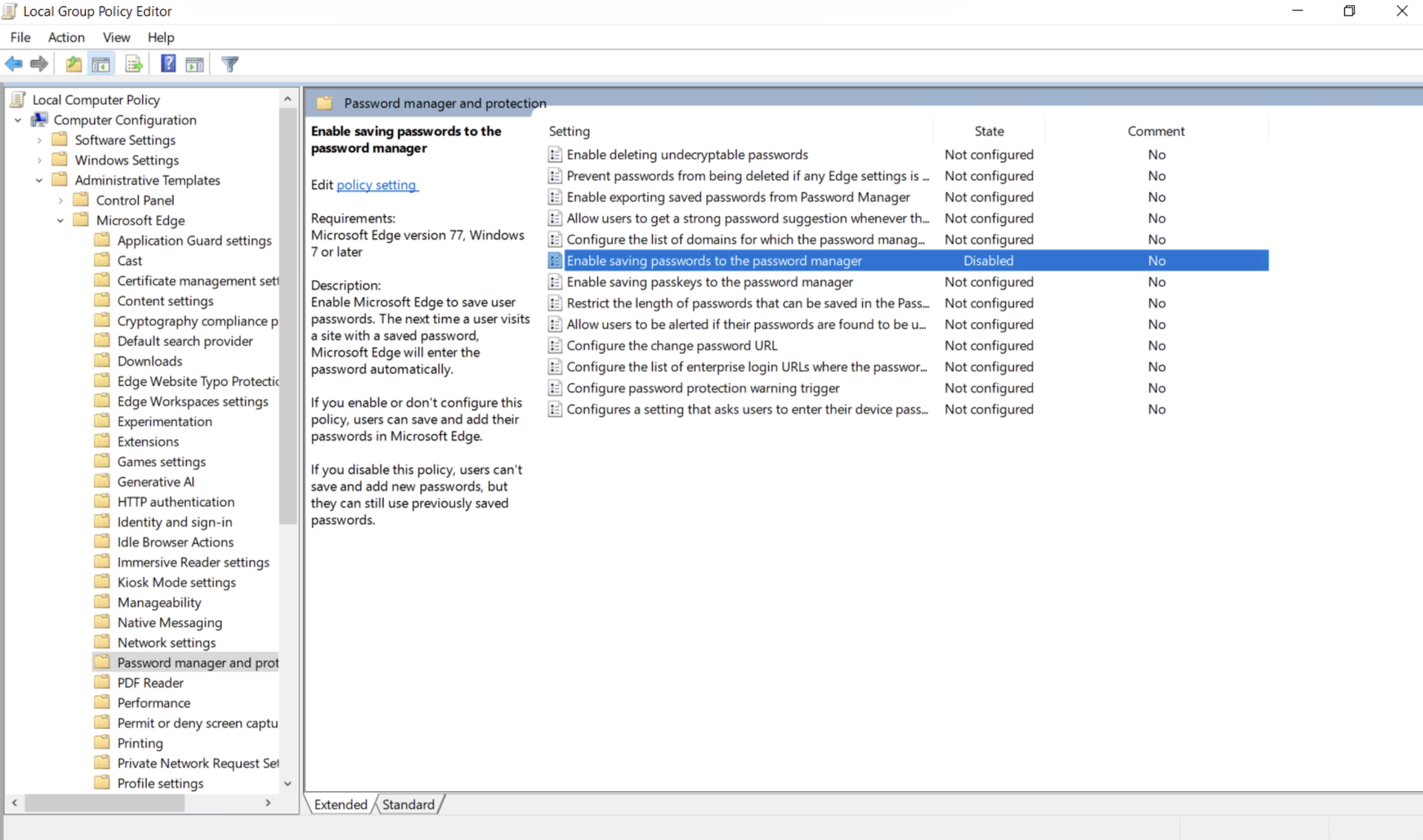
Note the description in the left pane: "If you disable this policy, users can't save and add new passwords, but they can still use previously saved passwords." This means existing saved passwords should be migrated to an enterprise password manager before enforcing this policy otherwise users lose access to credentials they rely on.
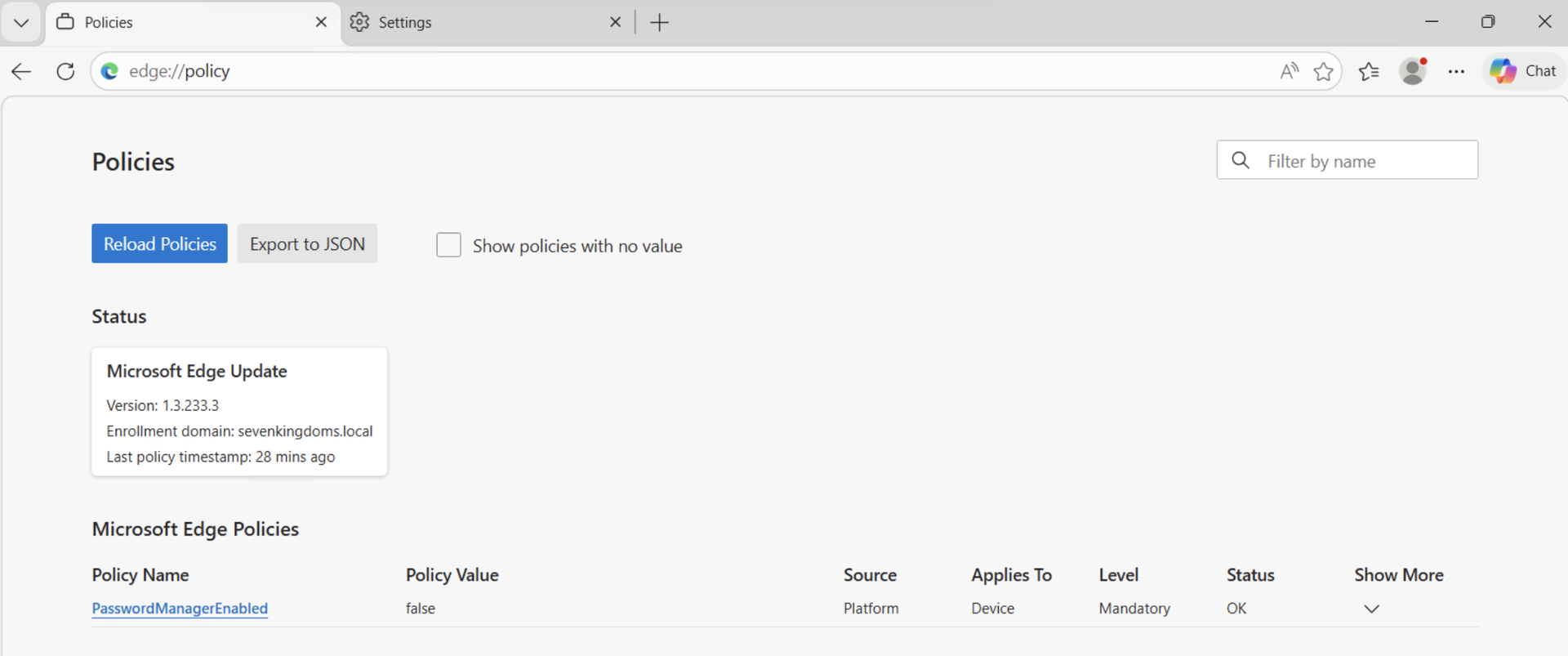
The second screenshot confirms the policy is active and applied correctly. Navigating to edge://policy in the browser shows PasswordManagerEnabled with value false, source Platform, level Mandatory, and status OK. This confirms the policy has been pushed successfully via Group Policy and is enforced at device level the user cannot override it.
Summary of mitigations
|
Mitigation |
Action |
|
Avoid browser password storage |
Use a PAM or enterprise password manager for sensitive credentials |
|
Disable Edge Password Manager |
Enforce via Group Policy or Intune on all systems with sensitive credentials |
|
Least privilege |
Remove local admin rights from accounts that do not require them |
|
Privileged Access Workstations |
Use dedicated PAWs for administrative tasks to isolate credential exposure |
Conclusion
The Edge Password Dumper proof of concept highlights a well-known but frequently overlooked risk. The browser password manager is a convenience feature, not a security control. When Edge loads saved credentials, it places them in plaintext in process memory, and on shared systems, that memory is accessible to any administrator on the machine.
Microsoft considers this behaviour acceptable. That means the responsibility falls entirely on organisations to mitigate through configuration, policy, and detection. The mitigations described in this article are practical, can be enforced centrally through Group Policy or Intune, and do not require significant changes to existing infrastructure.
Understanding how attackers move through an environment after initial access is essential for building effective defences. Credential theft from browser memory is a standard post-exploitation step. By addressing it proactively, you remove one of the most reliable paths an attacker has toward lateral movement and escalation.
Let's Connect!
Are you in need of assistance from our Active Directory Experts, or are you left with some questions after reading this blog post? Don't hesitate to fill out the contact form below!