In the previous posts, we looked at the signals that Microsoft 365 can use to make access decisions: identity, identity risk, device posture, application context, network context, and data sensitivity. Conditional Access is where many of those signals come together.
Creating a Conditional Access policy is easy. Designing an architecture that remains understandable after months or years of changes is much harder. The problem is rarely one policy in isolation. It is what happens when several policies apply to the same sign-in, with different scopes, conditions, exclusions, and requirements.
This post focuses on how Conditional Access really works, how policies interact, how to structure them so that another administrator can understand them, and how to test changes without locking users out. We will also look at Microsoft-managed policies, emergency access, and how to protect Conditional Access itself.
Licensing note
Microsoft Entra Conditional Access requires Microsoft Entra ID P1 and is also included with Microsoft 365 Business Premium. Risk-based Conditional Access using user risk or sign-in risk requires Microsoft Entra ID P2.
Some signals and controls used by Conditional Access have their own licensing requirements. Device compliance normally relies on Microsoft Intune, while Conditional Access for workload identities requires Microsoft Entra Workload ID Premium.
Protected Actions require Microsoft Entra ID P1.
Conditional Access as the Policy Engine
Microsoft describes Conditional Access as its Zero Trust policy engine.
Entra ID knows who the user is and how they authenticated. Entra ID Protection can indicate whether a user or sign-in is risky. Intune can provide device compliance. Applications provide the target resource. Network conditions and Global Secure Access add network context. Microsoft Purview can contribute Insider Risk signals, while authentication context can identify a particularly sensitive resource or operation.
Conditional Access takes those signals and applies an access decision. At its simplest, the logic is:
If these conditions are true, enforce these access requirements.
A policy might require MFA for Microsoft 365, phishing-resistant authentication for administrators, or a compliant device before accessing a sensitive application.
Individually, those policies are easy to understand. The complexity begins when several of them apply to the same request.
That is why a good Conditional Access architecture is not measured by how many policies it contains. It is measured by whether you can predict the result of an access request before it happens.
How Conditional Access Really Works
One of the most important things to understand about Conditional Access is that policies are not processed from top to bottom. They do not work like firewall rules where the first matching rule wins.
Microsoft Entra ID evaluates the Conditional Access policies that apply to an access request, and the requirements from those policies are combined.
Consider a simple example.
Policy A
All users
Microsoft 365
Require MFA
Policy B
All users
Microsoft 365
Require a compliant device
If both policies apply, the user needs MFA and a compliant device. Policy B does not replace Policy A.
If another applicable policy contains Block access, the request is blocked.
This leads to one of the most useful rules when designing or troubleshooting Conditional Access:
Never look at one policy in isolation.
Authentication and Conditional Access are related, but not the same thing
Conditional Access does not decide which authentication methods a user is allowed to have. That is primarily controlled through the Authentication methods policy, where methods such as passkeys, Windows Hello for Business, Microsoft Authenticator, or certificate-based authentication can be enabled for users and groups.
Conditional Access can, however, decide which type of authentication is acceptable for a particular access request. This is done through grant controls such as Require multifactor authentication or Require authentication strength.
For example, a user might be allowed to use several authentication methods in the tenant, but a Conditional Access policy protecting an administrative application could require the built-in Phishing-resistant MFA authentication strength. In that case, using a password and SMS would not satisfy the policy. The user would need an authentication method that meets the required strength, such as an appropriate passkey, Windows Hello for Business, or certificate-based authentication.
This distinction is particularly important in a passwordless environment.
Conditional Access policies are evaluated after the initial authentication. An authentication strength therefore does not restrict which method the user can initially choose during sign-in. The user could, for example, start with a password even though the resource ultimately requires phishing-resistant authentication. Entra ID then checks whether the authentication already performed satisfies the applicable Conditional Access requirements.
If it does, the user can continue without another authentication prompt.
If it does not, Entra ID requires the user to satisfy the stronger authentication requirement before access is granted. Depending on the method involved, this can mean a step-up prompt or, in some cases, restarting the sign-in and selecting a different method.
A passwordless method can also satisfy the requirement from the start. If a user signs in with a passkey that meets the required phishing-resistant authentication strength, there is no reason to ask the user to authenticate again.
So the flow is not simply:
Password → MFA → Conditional Access
A more accurate way to think about it is:
Authentication starts → Conditional Access evaluates the access request → Entra ID checks whether the authentication and other signals satisfy the applicable policies → additional requirements are completed if necessary → access is granted or blocked
Conditional Access is not deny by default
Another important behaviour is that Conditional Access is not a deny-by-default system.
If no applicable Conditional Access policy requires an additional control or blocks the request, Conditional Access does not add another requirement to that access attempt. Assuming the application and other controls allow the request, Entra ID can issue the token normally.
This makes gaps in Conditional Access coverage particularly easy to miss.
Nothing necessarily fails. There is no warning telling the administrator that an application was accidentally left outside the baseline. The user simply accesses it without the additional protection you expected.
This is one of the reasons broad baseline policies and careful resource scoping are so important.
How the evaluation works
Microsoft describes Conditional Access processing in two phases.
During the first phase, Entra ID gathers the information needed to evaluate the request. Depending on the scenario, this can include the identity, target resource, network, device information, client application, authentication details, risk signals, and other available context.
Conditional Access then determines which policies apply to that request. Policies configured as On and policies in Report-only mode are evaluated, although report-only policies do not enforce their controls.
During the second phase, the requirements from the applicable enabled policies are enforced.
If an applicable policy blocks access, the request is denied. Otherwise, Entra ID determines which grant requirements must be satisfied. These might include MFA, a specific authentication strength, a compliant device, or an app protection policy.
If the authentication already performed satisfies an authentication requirement, it can be reused. If it does not, the user must satisfy the required authentication before access can continue.
Session controls are then applied where applicable.
There is also logic inside each policy
Policy intersection is only one part of the story. The configuration inside an individual policy also determines how it behaves.
Assignments and conditions define when the policy applies. For example, a policy could target:
users in the Finance group;
accessing a finance application;
from a Windows device.
These conditions combine to determine whether the policy applies to the request.
Grant controls then define what must happen.
If several grant controls are selected, Conditional Access lets you choose between:
Require all the selected controls
Require one of the selected controls
For example, a policy containing:
Require phishing-resistant MFA
Require device to be marked as compliant
with Require all the selected controls means the user must satisfy both requirements.
With Require one of the selected controls, either one can satisfy that particular policy.
The same principle applies to authentication strengths across several policies. If multiple applicable policies require authentication strengths, the user has to satisfy all of those requirements. This is another reason overlapping policies need to be designed carefully.
There are therefore two levels of logic to keep in mind:
What does each individual policy require?
What happens when all applicable policies are evaluated together?
Once those two questions are understood, Conditional Access becomes much easier to predict.
Building a Predictable Policy Architecture
Conditional Access gives administrators a lot of flexibility. That flexibility is also what makes badly designed environments difficult to maintain.
A common mistake is to create a new policy every time a new requirement appears. A new application gets its own policy, a new department gets another, and a new device requirement creates another one.
After a few years, the tenant can contain dozens of policies with overlapping scopes and exclusions, and nobody is entirely sure what will happen when they interact.
Microsoft currently limits a tenant to 240 Conditional Access policies, including policies that are On, Off, or in Report-only mode. More importantly, Microsoft's own guidance recommends minimising the number of policies and grouping applications that have the same requirements for the same users.
The goal is not to create as few policies as possible. It is to avoid unnecessary duplication while keeping every policy understandable.
A practical architecture normally develops in layers:
Broad baseline controls;
Stronger controls for privileged identities;
Device-related requirements;
Risk-based controls;
Application-specific requirements;
Session controls.
The important point is that each policy should have a clear purpose.
For example:
Require phishing-resistant authentication for administrators.
That is easy to understand and test.
A policy that targets several groups, eight applications, multiple device platforms, several locations, and unrelated grant controls may technically work, but it becomes much harder to explain why it exists or why it affected a particular sign-in.
The opposite extreme is not better. Creating one policy for every application and department quickly leads to policy sprawl.
Keep policies focused, but consolidate them when the requirement and scope are genuinely the same.
Microsoft-Managed Policies
There is another part of the architecture that is easy to overlook: not every Conditional Access policy in the tenant is necessarily one that your administrators created.
Microsoft creates Microsoft-managed Conditional Access policies in eligible tenants. Which policies appear depends on licensing and feature eligibility.
At the time of writing, Microsoft documents ten managed policy types covering scenarios such as MFA, phishing-resistant authentication for administrators, legacy authentication, device code flow, risky sign-ins, risky users, and high-risk agent identities.
Microsoft-managed policies are initially created in Report-only mode. If a policy remains there, Microsoft normally enables it no less than 30 days after they're introduced. Customers receive an email and Message center notification approximately two weeks before activation. Microsoft notes that some policies can be enabled sooner when that timing is communicated to the tenant.
You cannot rename or delete a Microsoft-managed policy. Administrators can change its state and configure exclusions. If you need to make broader changes, you can duplicate it and manage the copy as a normal Conditional Access policy.
This matters from an architecture perspective because your Conditional Access environment can change even when one of your own administrators has not created a new policy.
Microsoft-managed policies appear alongside your own policies, and the Created by column identifies their origin. Their changes can also be reviewed in the audit logs.
Treat them as part of the architecture. Review what they do, understand where they overlap with custom policies, and make sure your emergency access accounts are excluded before an applicable managed policy becomes enforced.
Microsoft is also introducing managed controls for agent identities.
Naming and Organising Policies
Microsoft recommends that a Conditional Access policy name communicate:
A sequence number;
The cloud apps or target resources;
The response;
Who the policy applies to;
When it applies.
Microsoft has also published a persona-based Conditional Access framework that uses number ranges to organise policies according to the type of identity they protect.
For example:
| Range | Persona |
|---|---|
| CA001–CA099 | Global policies |
| CA100–CA199 | Administrators |
| CA200–CA299 | Internal users |
| CA300–CA399 | External users |
| CA400–CA499 | Guest users |
| CA500–CA599 | Guest administrators |
| CA600–CA699 | Microsoft 365 service accounts |
| CA700–CA799 | Azure service accounts |
| CA800–CA899 | Corporate or on-premises service accounts |
| CA900–CA999 | Workload identities |
This makes the policy list easier to read because the sequence number itself already tells you which population the policy belongs to.
Policies could then be named along these lines for example:
CA001 - All resources - Block legacy authentication - Global

CA101 - All resources - Require phishing-resistant MFA - Administrators

CA201 - All resources - Require MFA - Internal users

CA202 - Microsoft 365 - Require compliant device - Internal users - Windows
The numbering does not replace a descriptive name. It complements it.
If someone refers to CA101, you already know it belongs to the administrator policy set. The rest of the name then explains what resource it protects and what it requires.
Microsoft also recommends establishing ownership conventions. Conditional Access policies do not have a built-in owner attribute, so organisations should maintain a record of who owns each policy, why it exists, and when it was last reviewed. A policy that nobody owns eventually becomes a policy that nobody wants to change.
Scoping Policies and Managing Exclusions
Microsoft's current guidance recommends ensuring that every application has Conditional Access coverage. For broad controls, it recommends considering All resources. The advantage is straightforward. If a new application is introduced tomorrow, your baseline already covers it. You do not have to remember to add every new application manually.
That does not mean every policy should use All resources. Application-specific policies still make sense when the security requirement genuinely differs. A sensitive finance application might require stronger controls than normal productivity applications.
It is also important to understand service dependencies. Microsoft Teams, for example, depends on other Microsoft 365 services such as Exchange Online and SharePoint Online. A Conditional Access policy affecting one of those resources can therefore affect part of the Teams experience.
The aim is not always to make the scope as narrow as possible. It is to make the scope correct.
Exclusions override inclusions
Exclusions deserve particular attention because they are easy to create and easy to forget.
Within the same Conditional Access policy, if a user or group is both included and excluded, the exclusion wins.
That makes an exclusion a real security decision.
If an administrator adds an account to an excluded group “temporarily” and the account remains there for the next two years, that account stays outside the protection of that policy for the entire time. An exclusion from one policy does not exclude the identity from other policies. Every other applicable policy is still evaluated.
Where exclusions are required, document why they exist, who owns them, and when they should be reviewed. For environments with the appropriate licensing, access reviews can also help govern membership of exclusion groups over time.
Users are not workload identities
Another architectural boundary is worth remembering: an All users Conditional Access policy does not mean all identities in the tenant. User-targeted Conditional Access policies do not apply to service-principal sign-ins. Protecting supported service principals requires Conditional Access for workload identities, which has separate licensing and capabilities.
That topic is outside the scope of this post, but it is important not to assume that protecting all users automatically protects application identities as well.
Be careful when narrowing conditions
The same principle applies to conditions: narrowing a policy can create gaps that are not immediately obvious.
A good example is Device platforms. Selecting Windows, macOS, iOS, Android, and Linux does not necessarily mean every device is covered. Microsoft determines the platform from information provided by the client, such as the user-agent string, and an unknown or unsupported platform will therefore fall outside a policy that only includes explicitly selected platforms.
Where the goal is to block unsupported platforms, Microsoft recommends starting with Any device and excluding the platforms the organisation supports. Anything that does not match a supported platform is then caught by the policy.
Device platform should also not be treated as proof that a device is trusted. Where trust matters, use stronger signals such as device compliance or Microsoft Entra device identity.
Other Conditional Access conditions have similar edge cases.
Testing Before Enforcement
Conditional Access can improve security very quickly. It can also lock users or administrators out very quickly.
Testing therefore needs to be part of the deployment process.
Microsoft recommends using report-only mode, pilot users, policy impact information, sign-in logs, and the What If tool before broad enforcement.
Start in Report-only
A new policy should normally begin in Report-only mode.
In this state, Entra ID evaluates the policy during real sign-ins without enforcing its block or grant controls. The result is recorded in the sign-in logs.
Microsoft's current deployment guidance recommends keeping each new policy in report-only mode for at least one week before enforcement.
That gives you enough real activity to answer practical questions: Who would be affected? Which applications are involved? Would administrators be blocked? Do users have the required authentication methods? Are the expected devices actually compliant? Are there legitimate scenarios that were missed during design?
A week of real sign-ins usually tells you more than staring at the configuration page.
Report-only mode does not enforce anything, so no exclusions are required at all while a policy is in that state, including emergency access accounts. Exclusions only matter once the policy is switched to On, which is why they should be configured before you make that change.
Sign-in logs and What If
When Conditional Access produces an unexpected result, the sign-in logs should be one of the first places you look.
For an individual sign-in, you can see which Conditional Access policies applied, which did not apply, which were evaluated in report-only mode, and which requirements were involved.
The What If tool complements this by allowing you to simulate an access scenario before making a real sign-in.
For example:
What happens if this administrator accesses Azure from an unmanaged Windows device outside our normal network?
The tool is useful, but it does not replace real testing. Microsoft specifically notes that simulations do not model every service dependency. A test against Teams, for example, does not automatically evaluate every policy that might affect Exchange Online or SharePoint behind it.
A sensible rollout process is therefore:
Report-only → Review → Pilot → Enforce → Monitor
Not:
Create → Enable → Hope
Emergency Access and Resilience
A Conditional Access architecture needs a recovery path.
Microsoft recommends maintaining at least two emergency access accounts for situations where normal administration becomes unavailable because of a policy mistake, authentication outage, federation problem, or another failure affecting administrator access.
Microsoft's current guidance is quite specific. Emergency access accounts should be cloud-only accounts using the tenant's .onmicrosoft.com domain, with no dependency on federation or an on-premises identity system. Their Global Administrator assignment should be permanent active, rather than eligible through PIM.
They should use phishing-resistant authentication and, importantly, should not depend on exactly the same authentication method as normal administrator accounts.
For example, if your normal administrators rely on one phishing-resistant method, the emergency accounts can use another suitable method such as dedicated FIDO2 security keys or certificate-based authentication. The goal is to avoid a single authentication-method failure taking out both normal administration and the recovery path.
Emergency access accounts should be excluded from enforced Conditional Access policies that could block or restrict their sign-in. Report-only policies do not need that exclusion.
This does not mean the emergency accounts should be weak. Their credentials and authenticators need to be stored securely, access should be limited to authorised people, and their activity should be monitored.
Every sign-in by an emergency access account should be unusual enough to generate an alert.
Microsoft recommends validating the accounts at least every 90 days, as well as after important organisational or subscription changes.
An emergency account that nobody has tested for years is not much of a recovery plan.
Prepare for disruption before it happens
Emergency access accounts are only one part of resilience. Microsoft also recommends preparing contingency Conditional Access policies for outages affecting controls such as MFA or device compliance. These policies do not override existing policies, so the recovery procedure must document which contingency policies are enabled and which normal policies are temporarily disabled or adjusted. That operational process deserves its own treatment and is outside the scope of this post.
Protecting Conditional Access Itself
Conditional Access protects access to Microsoft 365, but the Conditional Access configuration also needs protection.
If an attacker compromises a privileged administrator and can weaken or disable Conditional Access, they can remove many of the controls described throughout this roadmap.
This is where authentication strengths, authentication context, and Protected Actions are useful.
The traditional Require multifactor authentication control asks whether the user's authentication satisfies MFA. Authentication strengths let you go further and specify which authentication methods are acceptable.
Microsoft provides built-in strengths such as Multifactor authentication, Passwordless MFA, and Phishing-resistant MFA. This allows normal MFA to remain appropriate for general access while requiring stronger methods for privileged operations.
Protected Actions
Protected Actions allow a supported Microsoft Entra permission to be associated with a Conditional Access authentication context.
Instead of only protecting the sign-in to an administrative portal, an additional requirement can be enforced when a particularly sensitive action is performed.
For example:
Administrator attempts to modify a Conditional Access policy
→ Protected Action requires the authentication context
→ Conditional Access requires phishing-resistant MFA
→ Administrator satisfies the requirement
→ The change is allowed
Microsoft supports Protected Actions for a limited set of high-impact permissions, including permissions used to create, update, and delete Conditional Access policies.
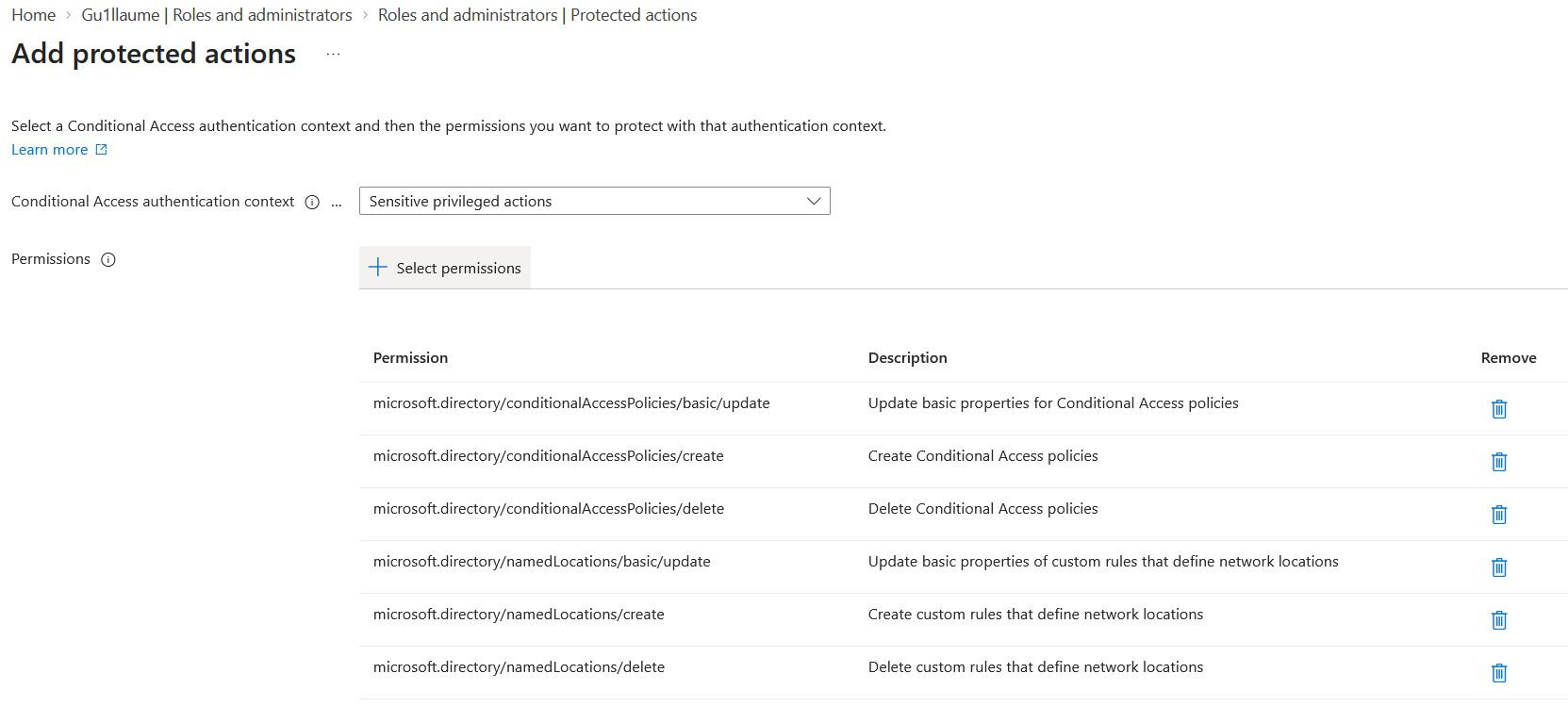
A practical implementation is to create an authentication context for sensitive identity operations, create a Conditional Access policy targeting that context, require phishing-resistant MFA, exclude the emergency access accounts, and associate the context with the supported management permissions.
Protected Actions complement PIM rather than replacing it. PIM controls when an administrator receives the privileged role.
Protected Actions control which additional requirements must be satisfied when a sensitive permission is actually used.
Authorisation still comes from the role assignment. Protected Actions add another verification step before the operation is allowed.
Microsoft's own Conditional Access deployment guidance now recommends Protected Actions as an additional safeguard before Conditional Access policies are created, changed, or deleted.
One operational point is worth remembering: administrative tooling and automation need to handle the step-up authentication challenge correctly. Test your administrative workflows before applying Protected Actions to critical operations.
Baseline Architecture Recommendations
A practical Conditional Access architecture should follow a few principles:
Use a clear naming convention so policies are easy to recognise and discuss.
Keep the number of policies manageable and consolidate them where requirements genuinely match.
Remember that all applicable policies combine. Never review one policy without considering what else applies to the same request.
Treat Microsoft-managed policies as part of the architecture, not as something separate from your own policies.
Prefer broad baseline coverage and use narrower policies where the security requirement genuinely differs.
Keep exclusions limited, documented, and regularly reviewed. Within a policy, exclusions override inclusions.
Remember that user-targeted policies do not automatically protect service principals.
Put new policies in report-only mode for at least one week before enforcement, unless there is a well-understood reason not to.
Use pilot users, sign-in logs, and What If before broad deployment.
Maintain at least two emergency access accounts, use independent phishing-resistant authentication where possible, and test them at least every 90 days.
Prepare contingency policies before an outage happens.
Use authentication strengths when the type of MFA matters.
Protect sensitive Conditional Access management operations with Protected Actions.
Review the architecture regularly as applications, authentication methods, Microsoft-managed policies, and business requirements change.
Wrapping Up
The previous posts in this roadmap introduced the signals: identity, risk, device posture, application context, network context, and data. Conditional Access is where many of those signals become decisions.
The difficult part is not creating a policy. It is creating an architecture where multiple policies can coexist without producing results that nobody expected.
That means understanding how policies combine, avoiding silent gaps in coverage, using consistent scopes and names, accounting for Microsoft-managed policies, keeping exclusions under control, and testing changes before enforcement.
It also means planning for failure. Emergency access accounts and contingency policies need to exist before something goes wrong, not after everyone has already been locked out.
Finally, the control plane itself needs protection. Authentication strengths and Protected Actions provide a way to require stronger verification when administrators make particularly sensitive changes.
In the next post, we will move from how Conditional Access should be designed to what a mature Conditional Access policy set looks like in practice: tenant-wide baseline policies, privileged identities, risky users and sign-ins, unmanaged devices, sensitive applications, Token Protection, and how to evolve those policies without creating a collection of permanent exceptions.
Let's Connect
Are you in need of assistance from our Cloud Experts, or want to discuss how these principles apply to your organization? Don't hesitate to fill out the contact form below!