In the previous posts, we covered identity, identity risk, devices, and applications as the dimensions Zero Trust uses to make access decisions. Each adds context to whether a sign-in should be allowed, and what conditions should apply.
The next dimension we will cover is the network the user is connecting from. This sounds like familiar territory: most organizations have used IP-based rules for decades, from firewall ACLs to VPN allow-lists to "trusted" office IPs in Conditional Access. The instinct to treat a known IP as a sign of trust is hard to shake.
Zero Trust pushes back on this. Network location is a useful signal, but a poor trust boundary on its own.
This post walks through how Microsoft Entra has handled network context over time, why the older patterns no longer hold up, and what the more recent capabilities actually change.
Licensing note
Entra ID
Named locations and Conditional Access are available with Microsoft Entra ID P1. Continuous Access Evaluation has two relevant parts: critical-event evaluation for supported Microsoft services, and Conditional Access policy evaluation for CAE-aware sessions. Conditional Access policy enforcement requires the appropriate Conditional Access licensing, typically Microsoft Entra ID P1 or P2. Workload identity CAE has separate licensing requirements through Workload Identities Premium. Strict Location Enforcement for CAE is currently in Public Preview.
Global Secure Access
The Microsoft traffic profile, used by Microsoft Entra Internet Access for Microsoft services, is included with Microsoft Entra ID P1 or P2 according to Microsoft's current documentation. Full Microsoft Entra Internet Access and Microsoft Entra Private Access require their own licenses or Microsoft Entra Suite, on top of the P1/P2 prerequisite.
Where Network Trust Came From
The original Microsoft Entra network control predates Conditional Access. In the per-user MFA portal, administrators could define a list of "trusted IPs" and have MFA prompts skipped when sign-ins came from those addresses. The intent was practical: avoid the friction of an MFA prompt every time a user authenticated from the corporate office. The implicit assumption was that the office network was safe.
This was a reasonable design when corporate networks were a meaningful concept and most attacks came from outside them. It is less reasonable today, but the setting still exists in tenants that have not migrated to Conditional Access, and the same logic carried over: in Conditional Access, the equivalent pattern is the named location used to skip MFA, allow legacy authentication, or bypass device compliance for users on a "trusted" IP range. The mechanism is more flexible and more visible, but the underlying assumption is the same.
This history is worth keeping in mind because it explains why so many tenants still carry IP-based MFA bypasses in production. They were usually introduced to reduce user friction, not because a corporate egress IP could prove identity, device health, or session integrity. In many tenants, they persist long after the assumptions behind them have stopped holding. The newer capabilities discussed later in this post help decouple usability from trust: they let access remain workable without treating a known IP address as proof that the request is safe.
Named Locations in Conditional Access
In Conditional Access, network context is expressed through named locations. There are three kinds. The first is a set of IP ranges, IPv4 or IPv6, that administrators define and optionally mark as trusted. The second is country or region locations, based on the IP's geolocation or, in some scenarios, GPS coordinates reported by the Microsoft Authenticator app. The third, more recent, is the compliant network, which appears automatically when Global Secure Access is configured with Conditional Access signalling enabled. We come back to the compliant network later.
Named locations are configured under Microsoft Entra admin centre → Protection → Conditional Access → Named locations, and consumed by Conditional Access policies under the Network condition. A policy can target a location (apply only when the sign-in matches), exclude one (apply everywhere except), or do both.
The more important question is how named locations are used. Two patterns are common, and they are not equivalent.
The first is defensive. The policy raises requirements when the user is outside a known network: stronger MFA from arbitrary internet locations, blocked sign-ins from countries the organization never operates in, additional session controls for unfamiliar geographies. The network signal is treated as context that influences the decision, not as a guarantee of safety. This is a reasonable use of named locations and we recommend it.
The second is permissive. The policy relaxes requirements when the user is inside a "trusted" network: MFA skipped, device compliance bypassed, legacy authentication allowed. The network signal is treated as evidence of identity. This is where most of the risk sits in real tenants, and it is the pattern Zero Trust asks us to reverse.
If you find yourself listing IP ranges to let users skip a security control, that is the place to look first.
Why IP-Based Trust No Longer Holds
Two practical realities have eroded what IP-based trust was ever worth.
One is token theft through Adversary-in-the-Middle phishing. The attacker proxies the real Microsoft sign-in flow; the user authenticates legitimately, completes non-phishing-resistant MFA, and the attacker captures the resulting session cookies or tokens. From that point, the attacker has valid bearer material for that user. In the classic model, the network location of the original sign-in mattered because that is when Conditional Access was evaluated. The network location of later requests may not be checked again until the client returns to Entra ID for a new token, which means a replayed access token can remain useful until it expires. Continuous Access Evaluation and the compliant network check, discussed below, are designed to reduce that gap by allowing supported services to reject tokens earlier or by blocking new token issuance from outside the tenant's compliant network.
The same problem appears in device-code phishing. The user authenticates on a legitimate Microsoft page and completes MFA, but the attacker receives the resulting tokens through the device code flow. The sign-in can be made to originate from infrastructure that looks geographically normal, so country or trusted-IP controls are weak defences. The right mitigation is not to tune geography; it is to block device code flow for users who do not need it, with documented exceptions for legitimate use cases.
The other is residential proxies and VPN exit nodes. Residential proxy services route traffic through compromised home internet connections (consumer routers, smart TVs, mobile devices), so the source IP looks like a normal household subscriber line of a real ISP, not a datacentre. The services are sold commercially, and the same pool that legitimate buyers use for ad verification or competitive scraping is available to attackers for account takeover. An attacker can pick an exit node in the victim's country, ISP, or even neighbourhood. Country-blocking policies are trivially bypassed by selecting a VPN exit in an allowed country, with or without the residential dimension. Midnight Blizzard has used residential proxy networks to conduct their attack and avoid traditional indicators of compromise-based detections.
Both defeat a specific assumption baked into IP-based controls: that the IP Entra ID sees corresponds to where the user actually is, and that the network the user authenticated from has any bearing on where the access continues from. Neither assumption survives contact with current tradecraft.
This is the gap the more recent Entra capabilities try to close. The rest of the post is about those.
Global Secure Access and the Compliant Network Check
Microsoft Entra Global Secure Access is Microsoft's Security Service Edge offering, bringing together Microsoft Entra Internet Access and Microsoft Entra Private Access. For this post, the relevant capability is Microsoft Entra Internet Access for Microsoft services, exposed through the Microsoft traffic profile.
The reason GSA matters for this pillar is not that it is a better VPN. It is that GSA changes what the network signal in Conditional Access actually represents. Until now, "this user is on the corporate network" was an assertion based on the IP address that arrived at Entra ID. With GSA, the network becomes an identified path: traffic that demonstrably originated from a device signed in to your tenant and was forwarded through your tenant's GSA edge. That distinction is what makes the compliant network check a meaningfully different control from an IP allow-list.
In Conditional Access, the compliant network appears as a new named location, All Compliant Network Locations, that Microsoft creates automatically once Conditional Access signalling is enabled for Global Secure Access. A policy that requires the compliant network is asserting that the request came through GSA, for this tenant, with a signed-in user. The IP is irrelevant. There is no list to maintain, and there is no need to hairpin VPN traffic through a corporate egress just to keep source-IP anchoring working.
How the check actually works against token theft
This is where the Microsoft documentation is worth reading in full: Enable Compliant Network Check with Conditional Access. It distinguishes two layers of enforcement, and the distinction matters for how the control actually mitigates AiTM token theft.
The first is authentication plane enforcement, performed by Entra ID at the moment of user authentication. If an attacker holds a stolen refresh token and tries to exchange it for a new access token from a device that is not connected to your compliant network, Entra ID denies the request directly. The attacker cannot mint new access tokens from outside the tunnel, regardless of how valid the refresh token is.
The second is data plane enforcement of the compliant network signal on already-issued access tokens, which is narrower and worth understanding precisely. Microsoft explicitly documents Microsoft Graph as supporting data-plane enforcement of the compliant network signal. Coverage is workload-dependent, so tenants should not assume that already-issued access tokens for every Microsoft 365 workload are rejected in real time purely because a compliant network policy exists.
For other CAE-enabled workloads, such as Exchange Online, SharePoint Online, and Teams, generic CAE still handles supported critical events such as account disablement, password reset, administrator session revocation, MFA enablement, and high user risk, with service-specific exceptions such as SharePoint Online not supporting user-risk events. Generic CAE can also enforce IP-based named-location policies at the resource provider for supported client and workload combinations. That means an IP-based location policy alongside the compliant network policy can help catch token use from an unexpected IP, but this is separate from data-plane enforcement of the compliant network signal itself. In standard CAE mode, IP-variation exceptions can still apply; Strict Location Enforcement is the stronger mode for tenants with stable, well-understood egress paths.
Together this means the compliant network check blocks new token issuance to attackers trying to replay stolen session or refresh tokens from outside the tenant’s compliant network. For Microsoft Graph, it can also block replay of already-issued access tokens in near real time. For other workloads, an already-issued access token is not rejected merely because the request is outside the compliant network unless another CAE trigger applies, such as a critical event or supported IP-based location change. Data-plane support for the compliant network signal is workload-dependent and expected to expand over time.
Not the same as requiring a compliant device
The two controls sound similar but check different things. Require a compliant device asks whether the device the user is signing in from is Intune-managed and compliant. Require compliant network asks whether the traffic is reaching Entra ID through your tenant's GSA tunnel. Device compliance does not stop an attacker replaying a stolen token from their own infrastructure, because the original device compliance signal travelled with the original sign-in; the attacker is reusing the result. The compliant network check is what closes that path. The two are complementary and work best in separate policies: device compliance as a baseline grant control, compliant network as the network condition that defeats token replay.
Configuration
A common reason this control is not deployed more widely is the assumption that Global Secure Access requires expensive add-on licensing. For the Microsoft 365 use case, that is not really the case. The Microsoft traffic profile, which is what enables the compliant network check for Microsoft services, is included with Microsoft Entra ID P1 or P2 according to current Microsoft documentation. The full Internet Access and Private Access products require additional licensing, but the compliant network check itself does not.
Microsoft's own deployment guide for the Microsoft traffic profile sets out what enabling it actually delivers: protection against data exfiltration, reduced risk of token theft and replay against Microsoft 365, source IP restoration for sign-in logs (which improves the accuracy of risk detections and threat hunting), and access policy management that does not depend on maintained lists of egress IPs. The compliant network check is the Conditional Access feature that ties all of this together.
Step 1: Pilot.
Before starting, make sure to communicate to end users what will change, document a roll-back plan that defines when to disable the traffic forwarding profile or remove the client, create an Entra group for the pilot users (small, a dozen or so, ideally including users on different device types and from different office locations), and review the existing Conditional Access policies that will start applying to the profile the moment it is enabled.
Step 2: Enable the Microsoft traffic forwarding profile.
Sign in to the Microsoft Entra admin centre as a Global Secure Access Administrator and browse to Global Secure Access → Connect → Traffic forwarding. Toggle on the Microsoft traffic profile. The Microsoft traffic profile is prepopulated with policy groups for Exchange Online, SharePoint Online and OneDrive, Microsoft Teams, and Microsoft 365 Common and Office Online. Microsoft Entra authentication traffic is handled by a separate system-managed Entra traffic profile that is automatically active when a traffic forwarding profile is enabled. Without the Microsoft traffic profile enabled, the rest of the steps do nothing: no traffic flows through GSA, no compliant network signal is generated, and any policy requiring that signal fails closed.

Step 3: Assign the profile to the pilot group.
A traffic forwarding profile only takes effect for users it is assigned to. On the same Traffic forwarding page, open User and group assignments on the Microsoft profile card and add the pilot group created in step 1.
Step 4: Enable Conditional Access signalling.
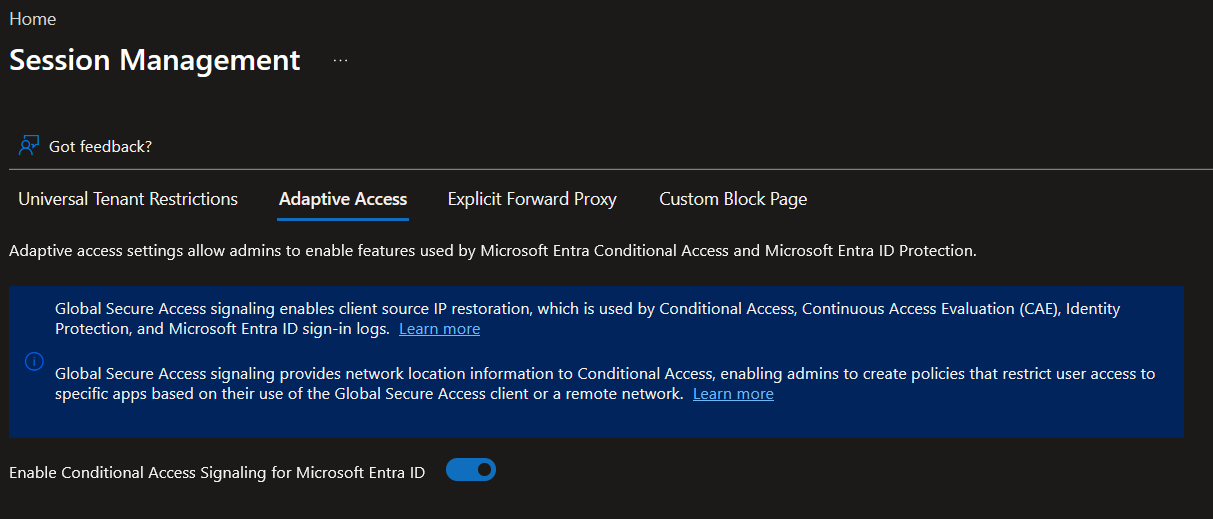
Browse to Global Secure Access → Settings → Session management → Adaptive access. Toggle on Enable Conditional Access Signaling for Microsoft Entra ID. This is the step that creates the All Compliant Network Locations entry in named locations. Without this toggle, the named location does not exist and no Conditional Access policy can target it.
Step 5: Confirm the named location.
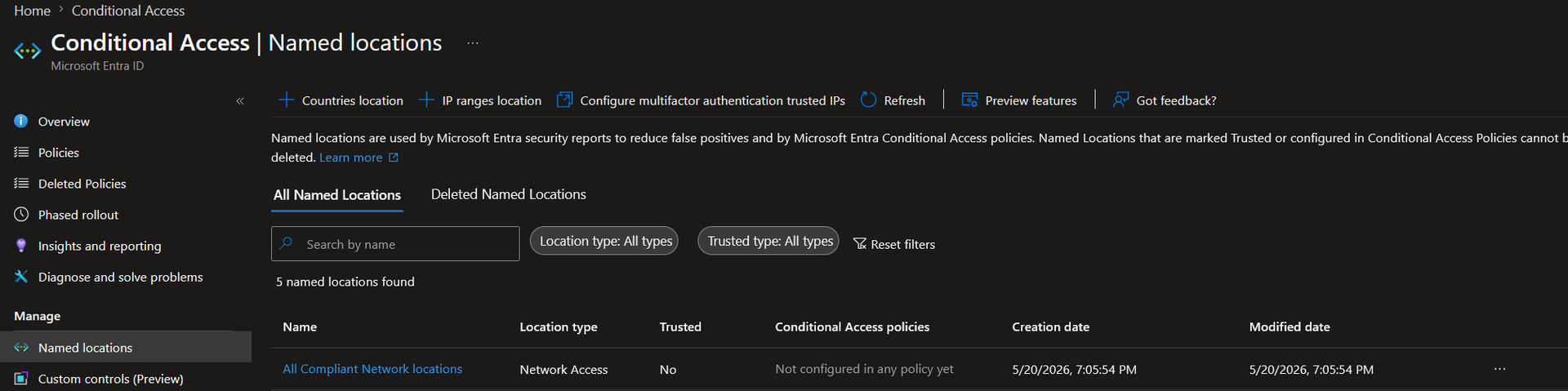
Browse to Entra ID → Conditional Access → Named locations. Confirm that All Compliant Network Locations is present, with location type Network Access. It can optionally be marked as trusted.
Step 6: Install the Global Secure Access client on pilot devices.
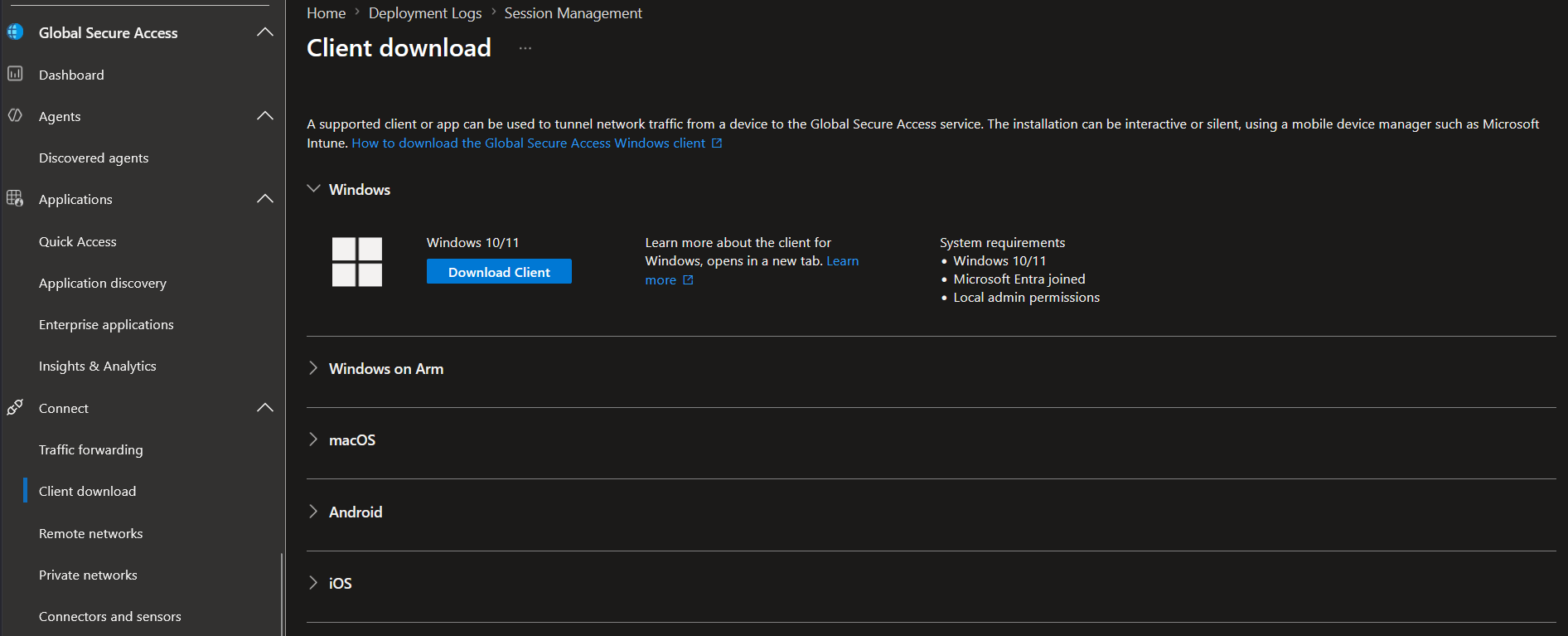
The client is available from Global Secure Access → Connect → Client download for Windows, macOS, iOS, and Android. For this endpoint pilot, install the Global Secure Access client on pilot devices. Remote networks are a separate design option, but they should not be treated as equivalent to the client-based compliant-network pilot: Microsoft documents important Conditional Access enforcement limitations for Microsoft and Internet traffic when the user device does not run the GSA client. The client signs in as the user, inherits their tenant context (which is what makes the compliant network signal tenant-specific), and starts forwarding the traffic defined by the profile assigned in step 3. Deployment via Intune is straightforward for managed Windows devices.
Step 7: Create the Conditional Access policy.
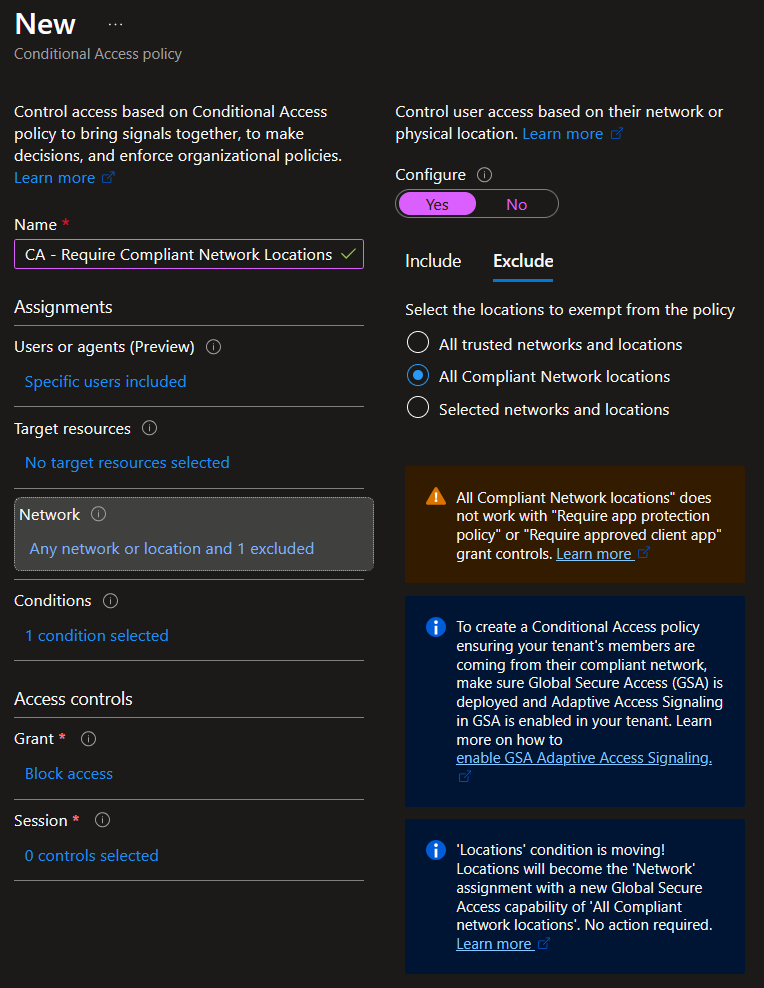
Browse to Entra ID → Conditional Access → Create new policy and configure as follows:
- Users: include the Entra ID pilot group. Exclude break-glass accounts. Exclude service accounts that cannot run the GSA client (and migrate them to managed identities where possible).
- Target resources: include All resources. If the tenant uses Intune device enrolment, exclude Microsoft Intune Enrollment and Microsoft Intune to avoid a circular dependency where new devices cannot enrol because they are not yet on the compliant network.
- Network: set Configure to Yes. Under Include, select Any location. Under Exclude, select All Compliant Network Locations.
- Grant: select Block access.
- Enable policy: set to On.
Step 8: Verify with the documented test.
From a pilot device with the GSA client running, sign in to an Entra-integrated application. Then right-click the GSA client icon in the system tray and select Disable. Try to sign in to a different Entra-integrated application. The second sign-in should be blocked by Conditional Access. Re-enable the GSA client and confirm access works again.
Once the test passes for the pilot users, assign the profile to more users, deploy the client for them, then add the wave's users to the Conditional Access policy's user scope.
Continuous Access Evaluation
The compliant network check addresses the network signal at sign-in. Continuous Access Evaluation (CAE) addresses the time between sign-ins.
Microsoft Entra access tokens default to between 60 and 90 minutes. Without anything else, if a user's account is disabled, their password is reset, or their session is administratively revoked, an attacker holding a stolen token can keep using it until the token expires. That window is what makes token theft so productive: even a fast incident response is slower than an attacker who already has tokens in hand.
CAE changes the model for participating resource providers. Exchange Online, SharePoint Online, Microsoft Teams, Microsoft Graph, and a growing list of other Microsoft services maintain a connection to Entra ID and listen for critical events. When something significant happens (an account disabled, a password change, an admin revoke-sessions action, an IP change to a non-allowed IP-based location, or a sharp rise in user risk), Entra ID notifies the resource provider, and the next request with that token is rejected. The "up to an hour" window for revocation drops to a handful of minutes. One important caveat: generic CAE location enforcement is based on IP-based named locations. It does not enforce country/region locations or MFA trusted IPs in real time at the resource provider. The compliant network signal is different: it is enforced at the authentication plane by Entra ID, and at the data plane only by participating services, with Microsoft Graph explicitly documented today.
There are two location enforcement modes. The default, standard mode, is forgiving: if the resource provider sees a request from an IP that is not in the named location but Entra ID's original sign-in was from an allowed location, CAE issues a short-lived token rather than blocking. This avoids breaking users on split-tunnel networks or behind dynamic NAT. Strict Location Enforcement, currently in Public Preview, removes that exception: any request from a non-allowed IP is blocked immediately. Strict mode requires that every egress path comes from dedicated, enumerated IPs, and a misconfiguration locks users out. It is a strong fit for tenants with stable network topologies and high-value workloads, particularly when paired with GSA so that egress is controlled by the tenant.
The combination of the compliant network check and CAE is the closest Microsoft 365 currently has to continuous network enforcement. It is also the most operationally demanding configuration in this series, and we do not recommend it as a starting point. Most tenants will get more value, faster, from removing the worst of their legacy IP-based bypasses than from chasing the most advanced enforcement modes.
Where Network Context Fits in the Bigger Picture
Network is one of the five access-decision dimensions in this series, but it is not a trust boundary by itself. The attacks discussed earlier are mitigated most effectively when network controls are combined with the identity, risk, device, and application controls from the previous posts. AiTM token theft is best prevented with phishing-resistant MFA; the compliant network check and CAE then reduce the usefulness of stolen tokens if prevention fails. Device-code phishing is addressed first by blocking the device code flow for users who do not need it. Residential-proxy abuse is harder to solve with geography alone; identity risk, device compliance, and compliant network requirements for sensitive resources provide stronger signals than country or office IP.
The point is the same one we keep making: no single control is sufficient. Zero Trust comes from layering controls so that each one limits the blast radius when another one fails.
Baseline Recommendations
A practical starting point for the Network pillar:
- Remove IP-based MFA bypasses. Every user, every location, MFA.
- Block legacy authentication unconditionally. Not "from external networks only". Everywhere.
- Block Device Code Flow authentication for the user population that does not need it, with a documented exception list for the cases that genuinely require it.
- Use named locations as context, not as trust. Use them to raise requirements when sign-ins come from unexpected places; do not use them to lower requirements when sign-ins come from "trusted" ones.
- Plan a Global Secure Access pilot. Start with the Microsoft traffic profile and the compliant network check; together, they are the most meaningful upgrade to Entra’s network signal for Microsoft 365 access today.
- Verify CAE is active on your Conditional Access policies. New tenants get this automatically; older tenants that migrated from legacy configurations sometimes do not.
- Maintain break-glass accounts and exclude them from network-restrictive policies. A misfired compliant network or strict location policy can lock everyone out, administrators included.
Wrapping Up
The Network pillar is the one most likely to feel familiar, and therefore the one most likely to be misapplied. Decades of perimeter thinking make IP-based trust feel reasonable. In a world of token theft, device code phishing, and commercial residential proxies, it is not.
What has changed recently is that there is a genuine modern alternative. For covered traffic, Global Secure Access turns the network into an identified path rather than a range of addresses, and the compliant network check makes that path enforceable in Conditional Access. Continuous Access Evaluation extends enforcement from the sign-in into the session for supported workloads and scenarios, with Strict Location Enforcement available in preview for tenants that can support it. None of this replaces the controls from the earlier posts in this series, but it helps close gaps those controls cannot close on their own.
In the next post, we close out the five access-decision pillars with the Data pillar: sensitivity labels with Microsoft Purview, data loss prevention, and session-aware data protection. Access decisions are only part of the picture; once a user is in, what they can do with the data matters just as much. After that, the series shifts focus from the individual pillars to how Conditional Access ties them together: policy architecture, layering, break-glass design, and operating Conditional Access at scale over time.
Let's Connect
Are you in need of assistance from our Cloud Experts, or want to discuss how these principles apply to your organization? Don't hesitate to fill out the contact form below!