Microsoft Entra ID, formerly Azure Active Directory, is a cloud-based identity and access management service. Entra ID is the identity provider used by Microsoft 365 and other connected services to authenticate users and grant access. It provides identities, authentication, policies, and protection to secure users, devices, applications, and resources.
An Entra tenant is created when an organization signs up for a Microsoft 365 subscription. Microsoft Entra ID is not always secure by default. While Microsoft is continuously improving the default configuration to make it more secure, important security settings must be changed and protection mechanisms implemented. The goal of this roadmap is to give you practical guidance on how to improve your existing security controls in your environment. It can also help organizations that are just starting their Microsoft 365 journey build a secure identity foundation from the beginning.
The first two months of the Microsoft 365 Zero Trust Roadmap are dedicated to identities because identities have become the new perimeter in cloud environments. They can be used to access Internet-facing administrative portals and cloud applications from anywhere in the world, and access to Microsoft 365 resources is ultimately granted when Microsoft Entra ID issues an access token.
Zero Trust in Microsoft 365
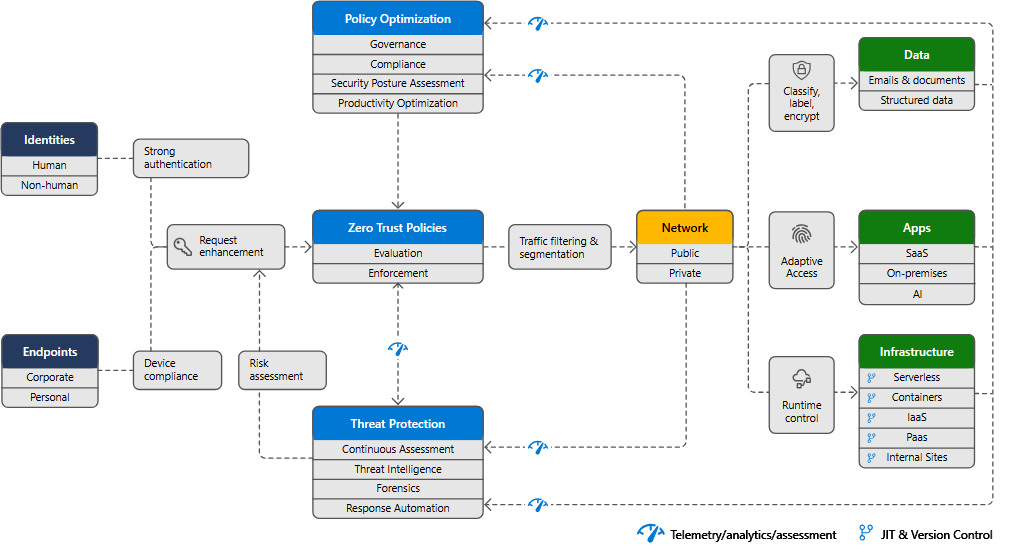
Zero Trust in Microsoft 365 is based on three core principles: verify explicitly, use least privilege access, and assume breach. Instead of trusting a user because they are “inside the network”, access is continuously evaluated using signals such as identity, device state, application context, and risk.
Microsoft structures this approach around seven pillars: Identity, Endpoints, Applications, Data, Network, Infrastructure, and Visibility/Automation/Orchestration. These will be discussed throughout this roadmap. In practice, access to cloud resources is evaluated through Zero Trust policies (for example, Conditional Access) and enforced when Microsoft Entra ID issues a token, while other controls such as endpoint protection, threat detection, and data protection are enforced in their respective platforms (for example Microsoft Defender and Microsoft Purview). This is why the roadmap starts with identity enforcement and progressively expands to stronger signals, policy optimization, and protection across the other pillars.
Define the Identity Model
If you are just getting started with your Microsoft 365 implementation, an important design decision is defining your identity model: cloud-only identities or hybrid identities based on an existing Active Directory Domain Services (AD DS) environment.
In a cloud-only model, authentication happens in Entra ID only. On the other hand, in a hybrid model, identities originate from your existing directory, while authentication can be handled either directly by Entra ID or delegated to an identity provider through federation.
While a cloud-only identity model is the easiest to implement, it is recommended only if you do not have an existing Active Directory environment or another identity provider outside of Entra ID. A centralized identity and access model is foundational to Zero Trust, because it enables consistent verification and policy enforcement across all resources. In Microsoft 365, this typically means using Entra ID as the primary identity control plane, even in hybrid environments.
To integrate an existing Active Directory environment with Entra ID, you can use managed or federated authentication. Federated authentication is generally discouraged for new deployments due to increased complexity and operational overhead. Moreover, the attack surface is larger because there are more components involved. Therefore, federated authentication should only be used if you have specific requirements that Entra ID cannot meet.
The other option is managed authentication, where Entra ID handles the authentication process by using a locally stored hashed version of the password (Password Hash Synchronization - PHS) or sends the credentials to an on-premises agent (Pass-Through Authentication - PTA).
PHS is the simplest way to implement a hybrid identity environment between AD DS and Entra ID. It also supports premium features like leaked credentials detection in Identity Protection and can be used with Microsoft Entra Cloud Sync for simplified synchronization scenarios. PHS can also be implemented as a backup method for PTA in case of on-premises failure. If the on-premises agents are failing, using only PTA will result in authentication failures. It is also important to note that PHS has security considerations. For instance, if an account is locked on-premises, it may take up to 30 minutes for the account to be locked in Entra ID because of the synchronization delay.
If PTA is used, lockout enforcement is typically faster because validation happens against on-premises Active Directory.
For more information about choosing the right authentication method, see:
https://learn.microsoft.com/en-us/entra/identity/hybrid/connect/choose-ad-authn.
Protect your users: Multi-Factor Authentication (MFA) and Password Protection
Once the identity model is defined, the next step is to make sure identities are properly secured.
Enforce Multi-Factor Authentication
First, ensure Multi-Factor Authentication is enforced for all users.
In Entra ID, this can be achieved with Security Defaults or Conditional Access policies. Security defaults are only recommended if you have an Entra ID free license, as Conditional Access is a premium feature available with Microsoft Entra Premium P1 or P2 licenses.
When Security Defaults are used, there is no real ability to fine-tune the configuration. It enforces specific controls such as unified MFA registration for all users using the Microsoft Authenticator app, requiring MFA when deemed necessary, for instance, when accessing cloud administrative portals, and blocking legacy authentication protocols (those that do not support MFA).
In addition to Security Defaults, per-user MFA settings allow you to enable MFA for all users or specific users. When MFA is enabled this way, users will be prompted to perform MFA each time they sign in, with configurable exclusions, such as when they sign in from a trusted IP address or from a trusted device. Note that trusted devices here is not something administrators can manage.
If "Remember multifactor authentication on trusted device" is enabled, any user will be allowed to trust any device, even shared devices. This option is not recommended over Security Defaults if you have an Entra ID free license. However, if you do not have a premium license, per-user MFA settings could be used if you need to manage exceptions for break-glass or emergency accounts.
Finally, the recommended approach to manage MFA enforcement in your Microsoft 365 environment is Entra Conditional Access (Entra ID Premium P1 or P2 required). Conditional Access takes identity-driven signals to make decisions and enforce policies. We will cover them in more detail in the coming posts, but they can be seen as if-then statements. If all conditions are met (for example, user or role, location, application, and device), access will be allowed, blocked, or restricted.
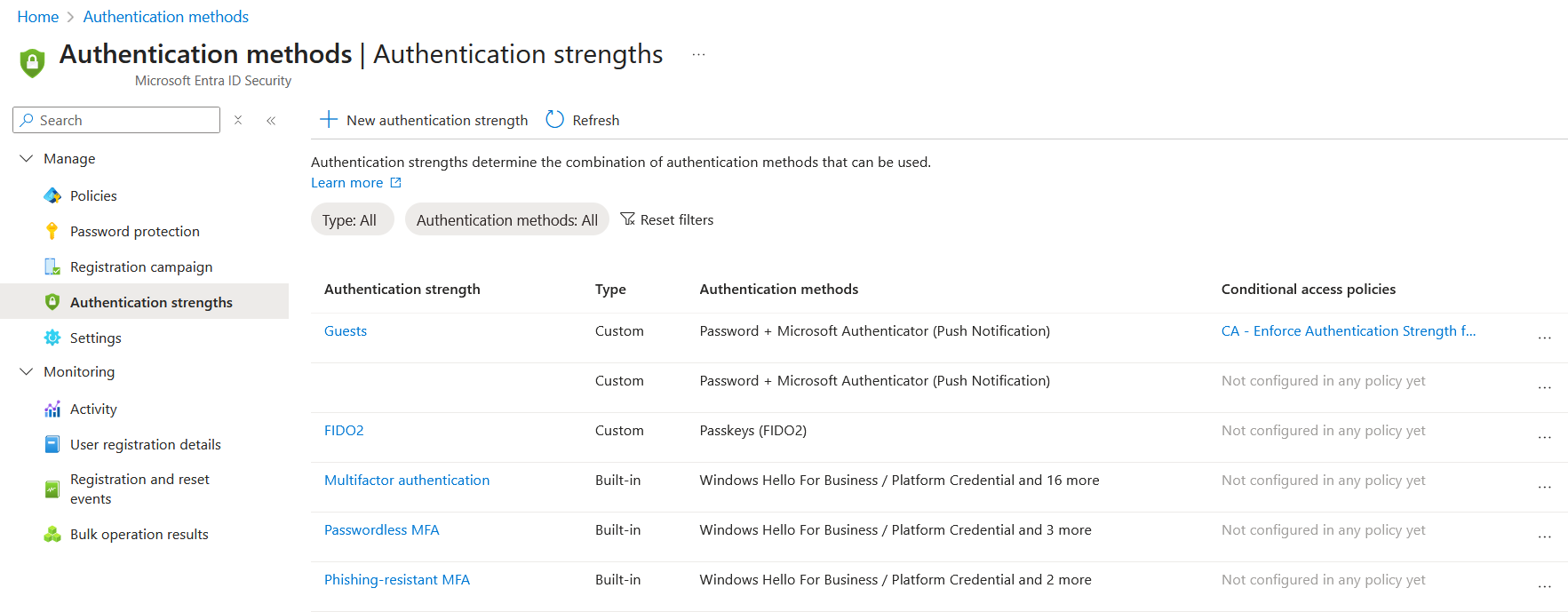
One Conditional Access policy control that is worth mentioning when enforcing MFA is enforcing authentication strength policies. Authentication strengths policies allow to determine the combination of authentication methods that can be used under specific conditions. This feature is particularly useful to prevent authentication downgrade attacks, where attackers are able to use weaker authentication methods instead of phishing-resistant methods to compromise a user account:
- If you select “Require multifactor authentication”, any MFA method allowed for that user can be used.
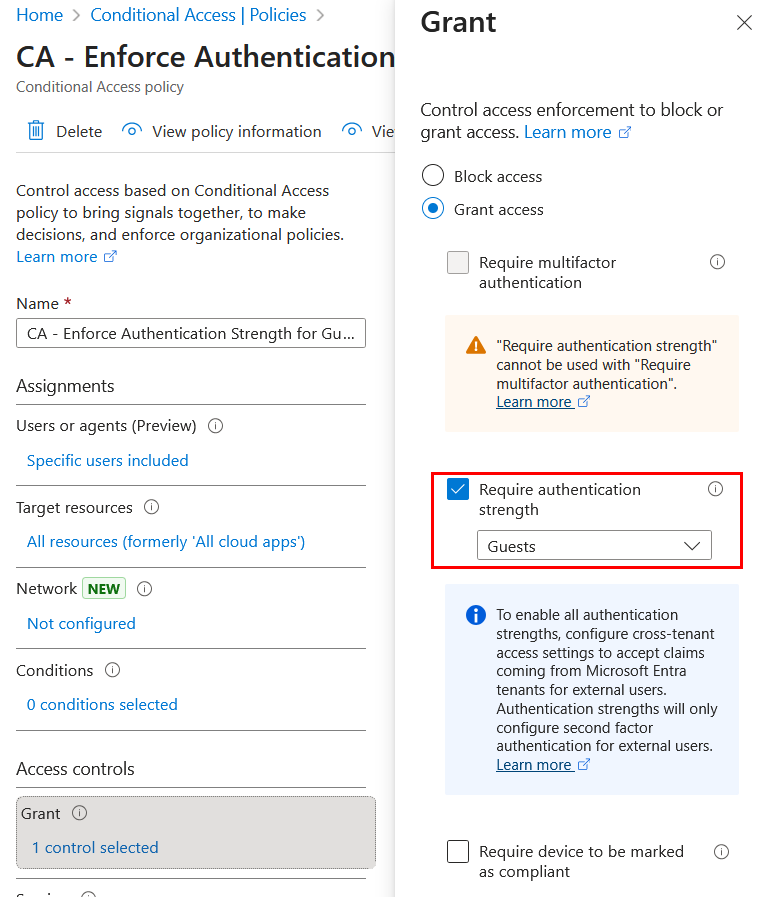
- If you select “Require authentication strength”, you can restrict access to phishing-resistant methods only.
These policies can be defined in the Azure Portal > Conditional Access > Authentication strengths:
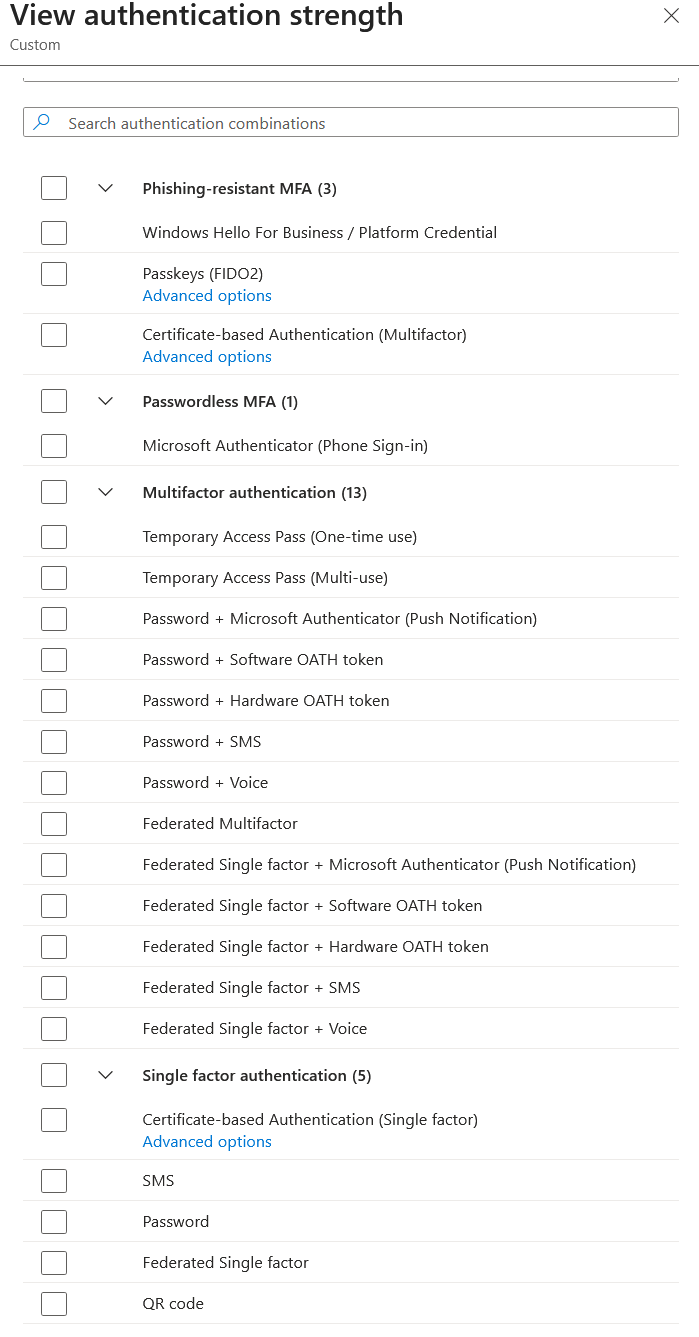
The following authentication methods are currently supported:
Authentication strengths policies can be used as follows in a Conditional Access policy:
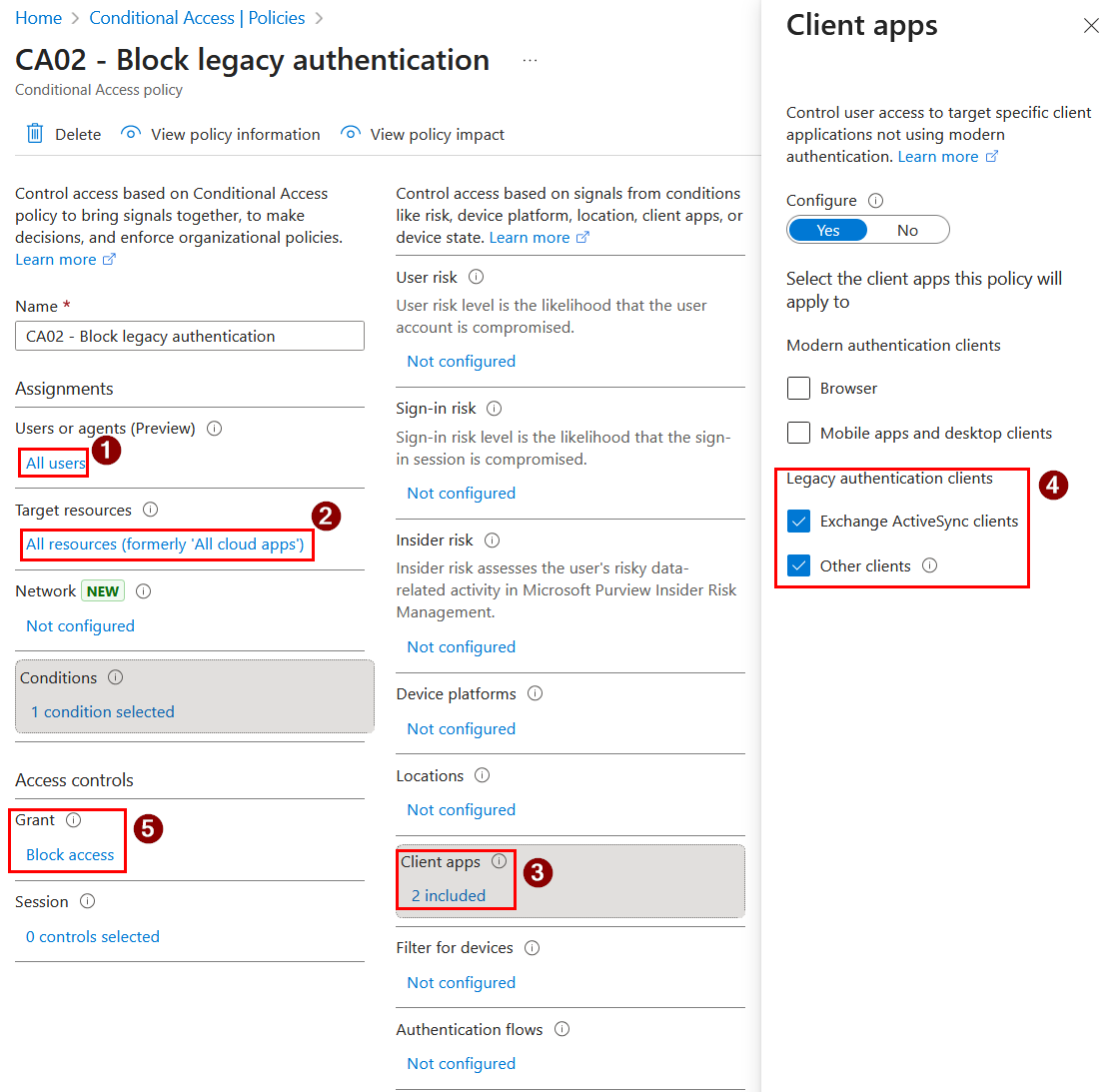
Since Security Defaults and per-user MFA settings should not be used together with Conditional Access policies, make sure legacy authentication is also disabled for all users in a dedicated policy:
Password Protection
Even with strong MFA, password-based authentication remains a common entry point for attackers through phishing, password spraying, or credential reuse. This is why password hardening is still a necessary baseline control. Over time, organizations should also aim to reduce reliance on passwords by progressively adopting passwordless authentication methods, especially for privileged identities.
To ensure users are using strong passwords, Microsoft Entra Password Protection detects and blocks known weak passwords and their variants, using a default global banned password list that is automatically applied to all users in a Microsoft Entra tenant. However, a custom banned password list can also be defined to support your own business and security needs. This list helps block passwords that use organization-specific terms such as brand and product names, company headquarters, or other company-specific keywords. Make sure to use only base keywords, as the password validation algorithm automatically blocks weak variants and combinations.
Example of custom banned passwords list:
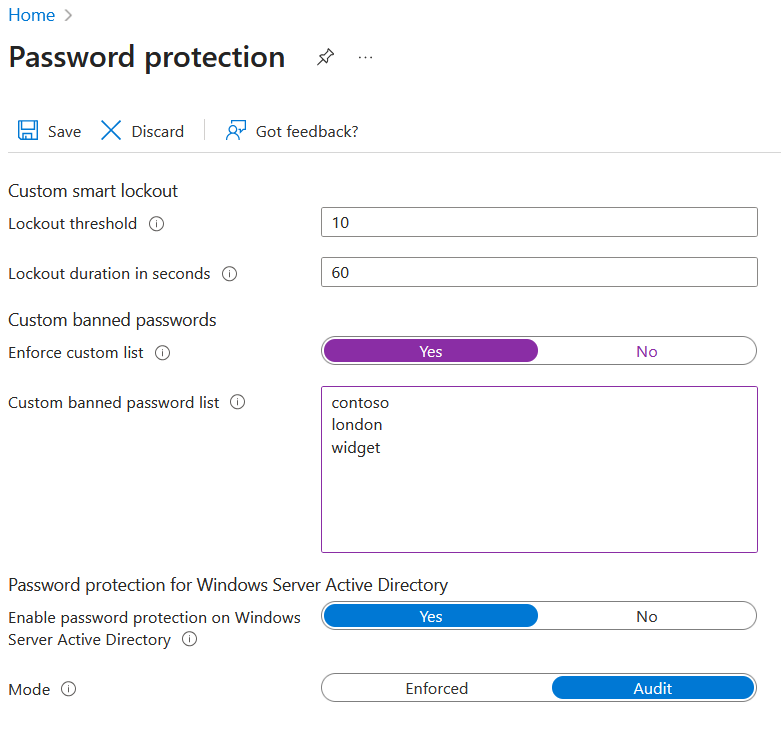
In hybrid scenarios, Password Protection can be extended to your AD DS environment by installing the required components on on-premises servers.
Protect Privileged Access
The last topic for this post is protecting privileged accounts in a Microsoft Entra tenant.
There are a few types of privileged accounts that can exist in a Microsoft 365 environment, including accounts for administrative tasks, user accounts used as service accounts, and break-glass (emergency access) accounts.
Administrative Accounts
Administrative accounts for human users should be cloud-only, dedicated accounts.
They should not be synchronized from on-premises Active Directory, as the compromise of one of these on-premises accounts can increase the risk of lateral movement from on-premises to cloud if those identities are synchronized and used for privileged cloud roles.
Therefore, in a hybrid deployment, administrative accounts should be cloud-only, dedicated accounts. In a cloud-only deployment, it is also recommended to use dedicated accounts instead of standard user accounts, as they are more exposed to phishing and token theft. They can also increase the impact of consent grant attacks, since some administrative roles can grant consent on behalf of the entire organization.
For human users, Privileged Identity Management (PIM) should be used to further protect privileged accounts with on-demand, just-in-time assignment of administrator roles. This provides additional logging for role activation and allows additional requirements such as step-up authentication, manual approval, and justification.
However, PIM does not protect against token theft. If attackers steal a refresh token from an administrator who has not elevated yet, they can wait until the administrator activates privileged roles in PIM and then attempt to reuse the stolen refresh token to gain privileged access.
Proof of Concept
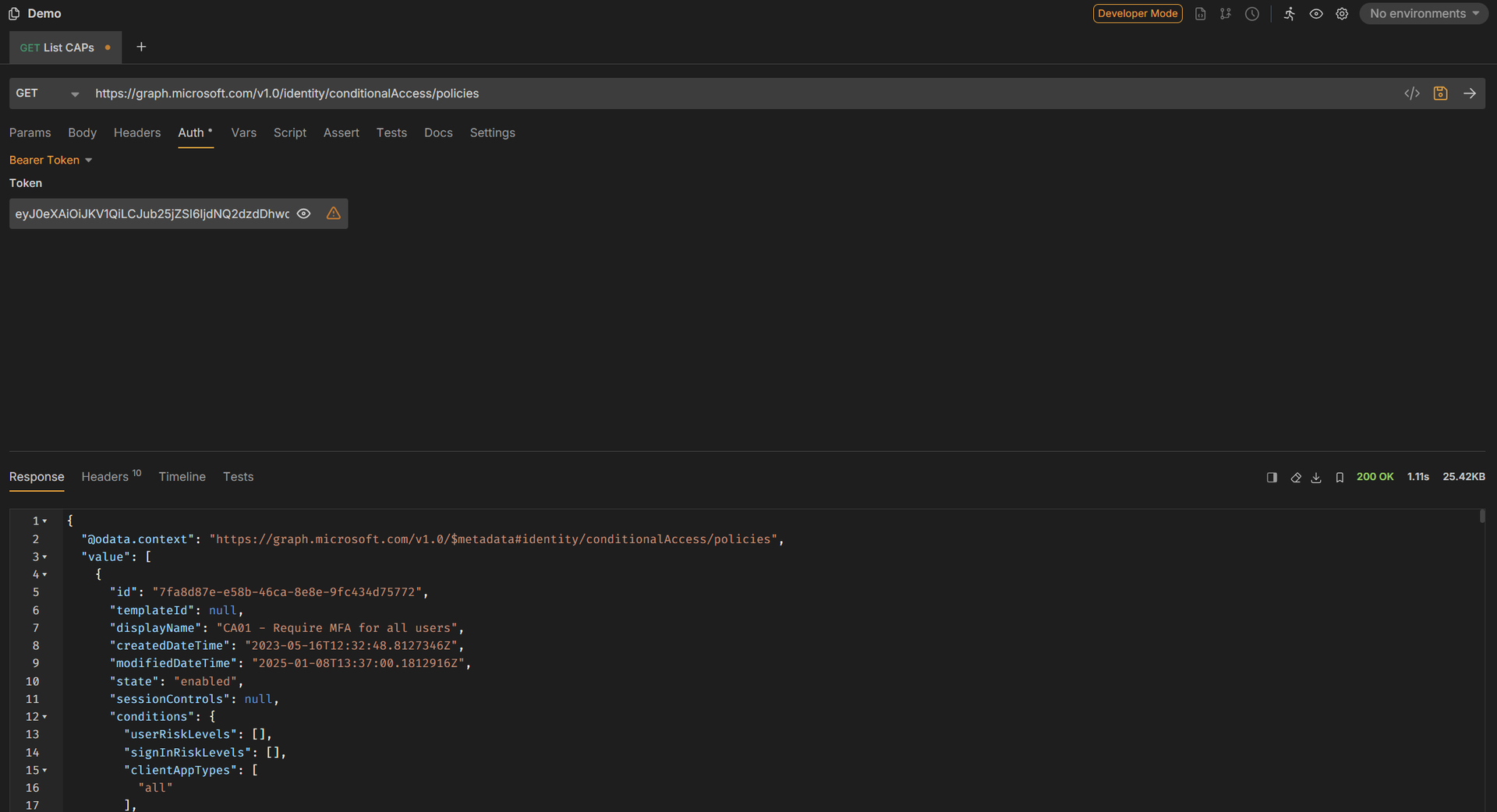
The following example demonstrates an important limitation of Privileged Identity Management (PIM): PIM reduces standing privilege, but it does not automatically protect against token theft.
Step 1: Admin is eligible but not elevated (Access denied)
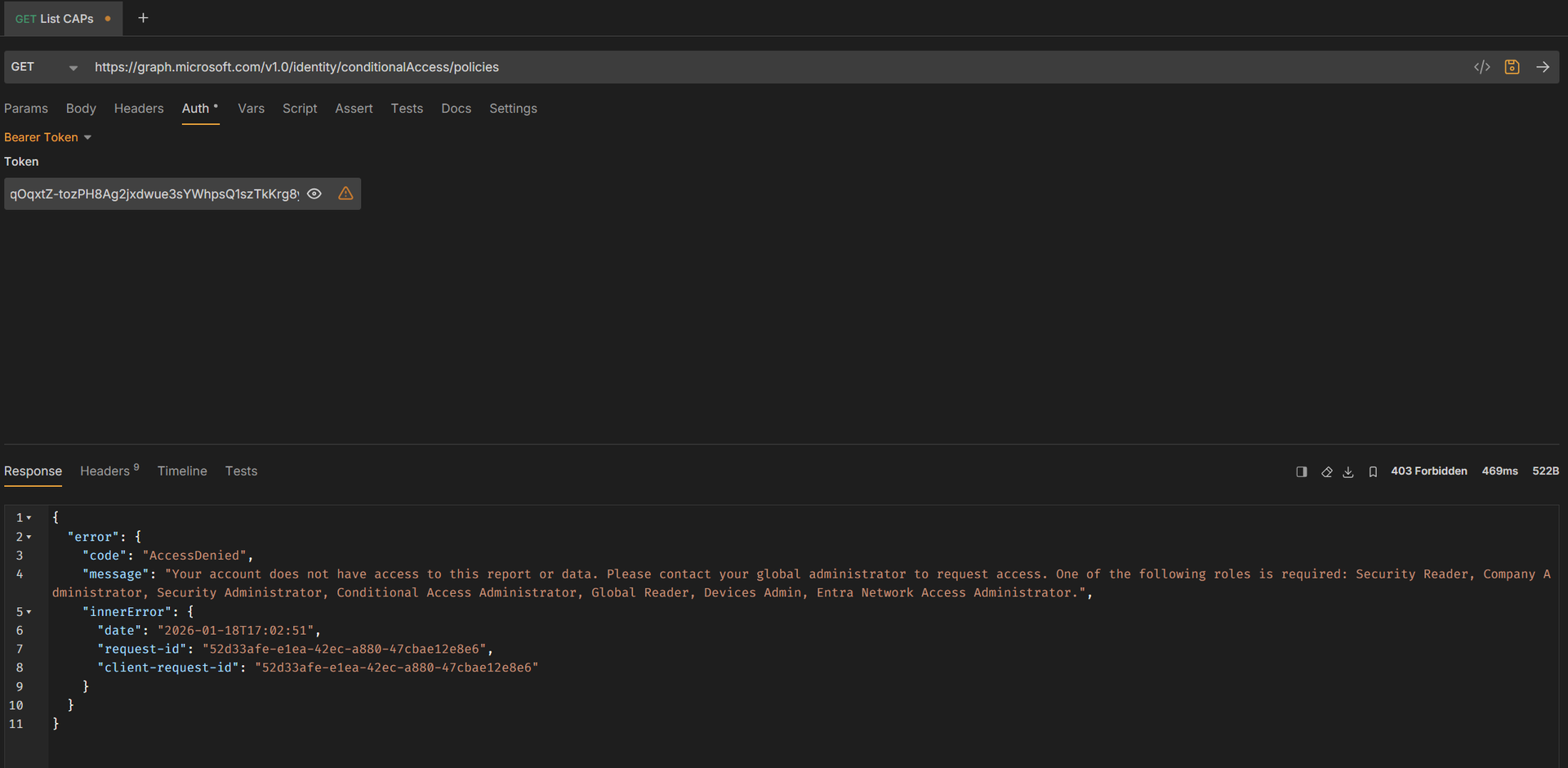
A token stolen from an administrator who has not activated a privileged role cannot access the /identity/conditionalAccess/policies endpoint.
Example request: GET https://graph.microsoft.com/v1.0/identity/conditionalAccess/policies
Result: 403 Forbidden (AccessDenied)
Step 2: Administrator elevates privileges using PIM
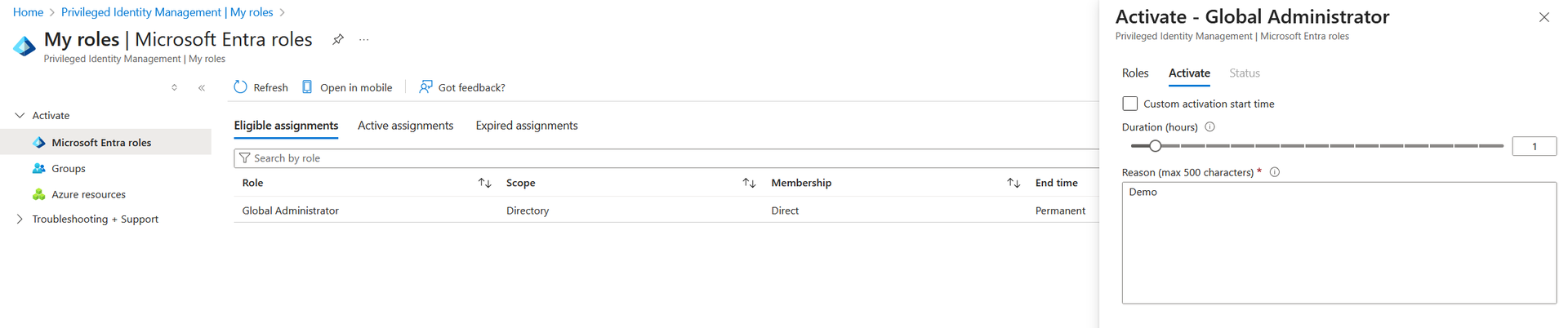
The administrator activates the Global Administrator role using PIM (with justification, step-up authentication, or approval depending on the configuration).
Step 3: Attacker reuses the stolen refresh token
If the attacker has obtained the administrator’s refresh token, they can attempt to mint a new access token after the role activation.

Step 4: Same request succeeds with the new access token
The attacker can now list Conditional Access policies using the newly issued access token.
Result: 200 OK (Success)
We will see later in the roadmap how this can be mitigated with Conditional Access policies.
User Accounts Used as Service Accounts
Some environments still rely on user-based service accounts. If you have such accounts in your tenant, we strongly encourage you to migrate to a more secure option. Service accounts are inherently less secure than managed identities and service principals because they are a poor fit for automation: they rely on long-lived credentials, usually stored in code, scripts, or configuration files, and are often used in non-interactive scenarios.
Alternatives to user-based servilce accounts, from the most secure to the least secure options, are:
- Managed Identities: Authentication happens in Azure for supported services. Managed identities do not have a password and authentication is fully managed.
- Service principals with certificate-based authentication.
- Service principals with secret-based authentication.
Emergency Accounts
Break-glass accounts (emergency access accounts) are specific accounts that are used to prevent being accidentally locked out of Microsoft Entra ID, for instance, in case of an outage with federated authentication, Privileged Identity Management, or Entra ID Multi-Factor Authentication.
As for administrative accounts, emergency accounts should use the <tenant_name>.onmicrosoft.com domain and should not be synchronized or federated. Credentials should be stored in a secure location such as a fireproof safe, ideally in a separate physical location. Also, make sure these accounts do not rely on the same authentication methods as other administrative accounts.
Such Break-glass accounts are usually excluded from Conditional Access policies for standard users and administrators. Because these accounts should not be used regularly, monitor and alert on any sign-in or audit log activity involving them.
Finally, as with any recovery procedure, make sure to test it regularly and review their usage and the list of authorized individuals according to your organization’s policies.
Wrapping Up
In this first post of the Microsoft 365 Zero Trust Roadmap, we focused on identity as the primary enforcement point for cloud access. We covered how to choose an identity model (cloud-only vs hybrid), how to enforce Multi-Factor Authentication, how to strengthen password-based authentication with Entra Password Protection, and how to protect privileged access using dedicated admin accounts, PIM, and emergency access accounts.
In the next post, we will go deeper into identity signals and detection capabilities, including identity risk, audit visibility, and how to use Microsoft Defender and Entra logs to identify suspicious activity early.
Let's Connect
Are you in need of assistance from our Microsoft Cloud Experts, or are you left with some questions after reading this blog post? Don't hesitate to fill out the contact form below!