
From 1 February 2027, Microsoft starts retiring the SMS and voice authentication it delivers in Microsoft Entra ID, as first announced in MC1426371. Global Administrators with an active role assignment and external users follow from 1 July 2027 (SMS and voice retirement guidance). Once the retirement reaches a user whose only MFA method is SMS or voice, that user gets a blocking prompt to register a passkey at sign-in, and there is no opt-out for that enforcement.
The important word is "Microsoft-provided". Organisations with a genuine need can keep SMS and voice for MFA and password reset by choosing their own telephony provider through the Microsoft Security Store, which has been possible since 30 October 2026. The integration runs as an Azure Function in your own subscription: you operate it, manage the provider account and configure the fraud controls, and you pay both the provider and the Azure costs (telephony provider guidance). We agree with Microsoft that this is an option for exceptions, because SMS and voice remain phishable whoever delivers the code.
In my Zero Trust roadmap series, I covered the Conditional Access foundation, from the architecture to policy maturity. This post is not part of that roadmap, but it builds on it and looks at the credential those policies should actually require. We get the same questions from customers almost every week: which kinds of passkeys exist, which ones count as phishing-resistant, whether Windows Hello for Business is good enough, how to handle admins, standard users and guests, and how to find the users at risk of losing access. With this post, I’ll walk through those questions, explain where the different options in Microsoft Entra ID fit, and show how to move away from SMS and voice while keeping sign-in and password recovery working.
This is the timeline Microsoft published:
Date | What happens | Who is in scope |
|---|---|---|
1 September 2026 | Passkeys auto-enabled and the registration campaign set to Microsoft managed, nudging users after MFA | Users enabled for SMS or voice in the Authentication methods policy or legacy MFA settings |
30 October 2026 | Telephony providers can be configured through Microsoft Security Store | Organisations with a documented need to keep SMS or voice |
1 February 2027 (rollout start) | Microsoft-provided SMS and voice retire for MFA, with a blocking passkey prompt for SMS/voice-only users. SMS first-factor sign-in retires for workforce tenants. SSPR keeps existing SMS and voice registrations for 50 days after the rollout reaches the tenant | All users except active Global Administrators and external users. Internal guests, and Global Administrators who are only eligible and haven't activated the role, are in scope |
1 July 2027 (rollout start) | Same MFA retirement and blocking prompt, with a separate 50-day SSPR transition | Global Administrators with an active assignment, and external users |
Both dates are the start of a phased rollout, not a single cut-off for every tenant (MC1536049). The timeline applies to workforce tenants in the public cloud, including GCC, other clouds follow later, Azure AD B2C isn't affected, and Microsoft Entra External ID customer tenants get a separate announcement (retirement FAQ).
Do this today
- Disable SMS as a first factor (uncheck "Enable first factor sign-in")!
- Run the inventory: who still relies only on SMS or voice, including admins and guests.
- Check your Authentication methods policy migration state and plan Migration complete.
Disable SMS as a first factor now, not in February
SMS sign-in lets a user sign in with their phone number and a code received by text message instead of a password. Microsoft positions it for frontline workers only and lists it as incompatible with Entra MFA (SMS sign-in known issues). In our tests in November 2026, a Conditional Access policy requiring MFA did prompt for a second factor after an SMS sign-in, but in the cases we investigated no policy applied (see below). Don't rely on Conditional Access to protect these sign-ins.
Why disabling SMS as first factor now? Attackers are actively abusing it. On 10 November 2026, the Centre for Cybersecurity Belgium (CCB) published an advisory and a warning after a trusted partner observed successful attacks against several Belgian organisations through SMS sign-in.
It is important not to mix up the two SMS settings. SMS as an MFA method, where the user types a password and then receives a code, is a weak second factor that Microsoft starts retiring on 1 February 2027. SMS as a sign-in method, where the code replaces the password, is the one being abused recently, and you should disable it now rather than wait for February.
Microsoft is phasing out SMS sign-in anyway. It was retired for Entra ID Free tenants on 11 August 2026 (MC1448374) and is no longer enabled for new tenants. For other tenants in the public cloud, the retirement starts on 1 February 2027: existing configurations stop being honoured, sign-ins with a phone number and SMS code are blocked, and the management experience is removed from the admin centres (MC1474104). A telephony provider doesn't change this: it keeps SMS available for MFA and password reset, not as a first factor.
The CCB advisory recommends the following, and it matches how we handle it with our customers:
- Assess the impact first. Find out which users, groups, applications and processes rely on SMS or voice for sign-in, MFA or password reset, including emergency access accounts, frontline and shared-device workers, external users and third-party systems. Use Microsoft's SMS and voice usage analyzer for policy scope and the Authentication methods activity report for actual usage.
- Treat SMS as a first factor as the priority. Check which users actually sign in with it, give them an alternative and uncheck "Enable first factor sign-in" under Entra ID > Authentication methods > SMS as soon as possible. Until then, restrict it to the smallest possible group and monitor it closely.
- Remove SMS and voice from privileged accounts after confirming that each one has a working phishing-resistant method.
- Review sign-in and audit logs as far back as retention allows for successful SMS sign-ins, phone number or method changes, unusual locations or devices, and follow-on activity such as mailbox rules or application consents.
In the cases we investigated, a few signals stood out in the sign-in events. The sign-in identifier was the user's phone number, a field that is usually empty for normal sign-ins, and the Conditional Access status recorded for the resource in those events was Not applied. The sign-ins also came from unexpected locations and triggered sign-in risk detections in Microsoft Entra ID Protection. The events don't tell us why no policy applied, so we don't draw a general conclusion about Conditional Access from them. They are reason enough to switch SMS sign-in off rather than rely on policies to cover it.
Passkeys 101: device-bound, synced and attestation
All passkeys are phishing-resistant. The private key is bound to the relying party (login.microsoft.com for Entra ID) and is only used after the user unlocks it locally with a biometric or a PIN, so a fake sign-in page on another domain has nothing to capture or replay. What differs between passkey types is where the private key is stored and how much you can prove about the authenticator that holds it (passkeys (FIDO2) overview).
Device-bound | Synced | |
|---|---|---|
Where the private key lives | On one device, never leaves it | Encrypted and synced through a cloud passkey provider to the user's other devices |
Examples | FIDO2 security keys, Microsoft Authenticator (iOS, Android), Entra passkeys on Windows | Apple Passwords (iCloud Keychain), Google Password Manager, password vaults such as Keeper, 1Password or Bitwarden |
Attestation | Supported for security keys and Authenticator, not yet for Entra passkeys on Windows | Not supported |
Security boundary | The device | The user's account at the passkey provider (Apple, Google or a password vault) |
After a lost or replaced device | New registration needed | Available again once the user signs in to the same provider account or vault on the new device |
Phishing-resistant | Yes | Yes |
If your organisation already uses a business password manager such as 1Password or Bitwarden, users can store and sync passkeys in a company-managed vault. Like other synced passkeys, these lack attestation, so Entra ID can’t verify which authenticator created them. Restrict passkey sharing in the vault’s admin settings to prevent colleagues from signing in as one another.
Attestation is how Entra ID checks, at registration, that a passkey comes from a genuine authenticator. How it does that depends on the authenticator:
- For FIDO2 security keys, the key presents an attestation statement, and Entra ID verifies its make and model against trusted metadata (passkey profiles).
- For Microsoft Authenticator, Entra ID relies on Apple's App Attest service on iOS, and on Google's Play Integrity or Android key attestation on Android, to verify that the genuine Authenticator app created the passkey. Android key attestation also verifies that the key is hardware-backed. If your policy requires attestation, iPhone users must register their passkey directly in the Microsoft Authenticator app.
Attestation has two consequences that customers often overlook:
- It is only checked when the passkey is registered. At sign-in, Entra ID doesn't verify attestation again: the AAGUID it checks against your key restrictions and authentication strengths is the one it recorded when the passkey was registered. If you turn on "Enforce attestation" later, passkeys that were registered without attestation keep working (passkey profiles).
- Without attestation, Entra ID can't guarantee anything about a passkey, not even whether it is synced or device-bound. That is also why enforcing attestation excludes synced passkeys.
The AAGUID (Authenticator Attestation GUID) identifies the authenticator model, for example a specific YubiKey series or Microsoft Authenticator on iOS. A passkey profile can allow or block AAGUIDs, while a custom authentication strength only takes a list of allowed AAGUIDs (authentication strength AAGUID configuration). Without attestation, the AAGUID is reported by the authenticator itself and can't be verified, so Microsoft advises treating an AAGUID list as a policy guide rather than a strict security control. With attestation enforced, the AAGUID is backed by the vendor's attestation and you can rely on it.
Key restrictions in a passkey profile work differently from attestation: the AAGUID list and the allowed passkey types are checked both when a passkey is registered and every time it is used. If you remove an AAGUID from an allow list, or untick synced passkeys in a profile, users can no longer sign in with such a passkey, unless another passkey profile they are in still allows it (see the profile rules below).
What Entra ID supports today
In Entra ID, all passkey types are configured under the same authentication method, Passkey (FIDO2), and you differentiate between them with passkey profiles. Passkeys are available in every Entra ID edition, including Free, but you need Entra ID P1 to enforce them with Conditional Access (passkey profiles).
Credential | Type | Where it lives | Attestation possible | Phishing-resistant strength entry |
|---|---|---|---|---|
FIDO2 security key | Device-bound passkey | Hardware key (USB, NFC) | Yes, vendor-dependent | Passkeys (FIDO2) |
Passkey in Microsoft Authenticator | Device-bound passkey | Authenticator on iOS or Android | Yes (App Attest, Play Integrity or Android key attestation) | Passkeys (FIDO2) |
Entra passkey on Windows | Device-bound passkey | Local Windows Hello container | Not yet (planned) | Passkeys (FIDO2) |
Synced passkey | Synced passkey | Apple, Google or a password vault (Keeper, 1Password, Bitwarden) | No | Passkeys (FIDO2) |
Windows Hello for Business | Platform credential | TPM, or software if no usable TPM and "Use a hardware security device" isn't enabled | Not applicable | Windows Hello for Business or platform credential |
Platform Credential for macOS | Platform credential | Secure Enclave on a macOS device with Platform SSO | Not applicable | Windows Hello for Business or platform credential |
Passkey profiles let you apply different rules to different groups instead of a single tenant-wide setting. Each profile defines whether attestation is enforced, which passkey types are allowed (device-bound, synced or both), and optionally a list of AAGUIDs to allow or block. There are a few rules you should know before you design them:
- Tenants that already had Passkey (FIDO2) enabled were migrated to passkey profiles automatically between May and June 2026 in the public cloud and GCC, other tenants opt in themselves. Either way, the existing settings become the Default passkey profile, and the change can't be reverted (MC1221452).
- You can create up to 10 passkey profiles, and the whole Passkey (FIDO2) policy can't exceed 20 KB (passkey profile prerequisites).
- When a user is targeted by several profiles, a passkey is accepted for registration and sign-in if it fully satisfies at least one of them. There is no order of precedence.
- Excluding a user from the Passkey (FIDO2) method blocks passkey registration and sign-in completely, whatever the profiles say.
- The "Allow self-service set up" setting applies to the whole method, not to individual profiles. If it is set to No, users can't register a passkey through Security info.
Two changes in 2026 also affect the profiles you may already have in place:
- Entra passkeys on Windows are now allowed by default. Since general availability, a profile that allows device-bound, unattested passkeys also allows Windows Hello passkeys without allow-listing their AAGUIDs (MC1282568). If you don't want passkeys on personal or shared PCs, add the Windows Hello AAGUIDs to the profile's block list.
- The September auto-enablement put SMS and voice users in a profile that allows all passkey types. The auto-enablement section below covers what that means for your design.
Windows Hello for Business vs Entra passkeys on Windows
Does Windows Hello for Business count as phishing-resistant MFA? Yes, it satisfies the built-in Phishing-resistant MFA authentication strength. What makes it confusing is that "Windows Hello" now covers two different credentials: Windows Hello for Business and Entra passkeys on Windows. Both live in the Windows Hello container and are unlocked with the same PIN or biometric, but they behave quite differently (Entra passkey on Windows).
Windows Hello for Business | Entra passkey on Windows | |
|---|---|---|
Protocol | Device-bound key pair for Windows sign-in, with Entra SSO through the Primary Refresh Token | FIDO2 / WebAuthn |
Registration | Automatically provisioned on some Entra joined or registered devices during device registration | User-initiated from Security info or a registration prompt; no join or registration needed |
Windows logon and PRT-based SSO | Yes | No |
Credential binding | Tied to the work or school account used to register the device | Several work or school accounts can each register a passkey on the same PC |
Key storage | TPM by default, software if no usable TPM unless "Use a hardware security device" is enabled | Depends on the Windows Hello authenticator (see the AAGUIDs below) |
Managed through | Intune or Group Policy | Authentication methods policy (Passkey (FIDO2) profiles) |
Authentication strength entry | Windows Hello for Business or platform credential | Passkeys (FIDO2) |
Attestation | Not applicable | Not supported yet; a profile with "Enforce attestation" can't include it |
Typical scenario | Corporate, Entra joined or hybrid joined devices | Personal, shared or unregistered PCs, or users with several accounts |
You may have come across three Windows Hello authenticators in the passkey documentation. Each one is an AAGUID for an Entra passkey on Windows, and it tells you where that passkey's private key is stored:
Windows Hello authenticator | AAGUID | Key storage |
|---|---|---|
Windows Hello Hardware Authenticator | 08987058-cadc-4b81-b6e1-30de50dcbe96 | Hardware TPM |
Windows Hello VBS Hardware Authenticator | 9ddd1817-af5a-4672-a2b9-3e3dd95000a9 | Virtualisation-based security and the hypervisor, with the key stored in the host's TPM |
Windows Hello Software Authenticator | 6028b017-b1d4-4c02-b4b3-afcdafc96bb2 | Software-based TPM, no hardware protection |
For Entra passkeys on Windows, we recommend allowing only the Windows Hello Hardware Authenticator and Windows Hello VBS Hardware Authenticator AAGUIDs. Both use the device’s hardware TPM to protect the private key. Windows passkeys currently lack attestation, so Entra relies on the AAGUID reported by the authenticator and cannot independently verify hardware backing.
For Windows Hello for Business, enable Use a hardware security device to require a usable TPM during provisioning. On a device without one, provisioning stops instead of creating a software-backed key. Windows Hello for Business policy settings
This has a few practical consequences:
- Users can't register an Entra passkey on Windows if a Windows Hello for Business credential already exists for the same account and Windows Hello container. On managed devices, Windows Hello for Business remains the recommended option anyway.
- Windows Hello for Business and macOS Platform SSO are becoming standalone MFA factors. With MC1450134, rolling out from early November to late December 2026, they can satisfy step-up prompts, authentication strengths and sign-in frequency checks as the second factor, and they appear in My Security Info as auto-registered passkeys. Until that rollout reaches your tenant, a user who signed in with a password isn't prompted for Windows Hello for Business and has to restart the sign-in and choose another option (authentication strength limitations). Because both credentials are device-bound, Microsoft recommends that users also register a portable method, such as a passkey in Authenticator.
Recommended settings per population
For privileged accounts, we recommend attested, device-bound passkeys from an AAGUID allow list, with Windows Hello for Business also allowed on designated privileged access workstations. For standard users, we recommend allowing both device-bound and synced passkeys, with Windows Hello passkey restrictions based on which devices can sign in. This is in line with Microsoft's own guidance, which recommends security keys or Authenticator passkeys for users with elevated privileges and synced passkeys for most other users (passkeys (FIDO2) overview).
Population | Passkey types | Enforce attestation | AAGUID restriction | Conditional Access |
|---|---|---|---|---|
Privileged accounts (admin roles, eligible or active) | Device-bound | Yes | Allow list: your security key models and Microsoft Authenticator (iOS, Android) | A custom authentication strength with the same AAGUIDs, plus Windows Hello for Business only on privileged access workstations |
Emergency access accounts | Device-bound (FIDO2 security keys) | Yes | Security keys only, enforced by a dedicated profile (see the profile layout) | Excluded from the admin policies, monitored separately, sign-in tested before each change |
Standard users | Device-bound and synced | No | Block list: all three Windows Hello AAGUIDs if sign-in is limited to managed devices, otherwise at least the Windows Hello Software Authenticator | Built-in Phishing-resistant MFA strength, phased in (see the migration section) |
Internal guests | Device-bound and synced, once the guest rollout reaches your tenant | No | None | Phishing-resistant MFA strength once registration works for them |
External (B2B) users | Device-bound and synced once Microsoft rolls this out, but no Authenticator app passkey registration in your tenant | No | None | Phishing-resistant MFA strength (or the MFA strength), satisfied in the home tenant through inbound MFA trust; Require multifactor authentication for email OTP, Google, SAML/WS-Fed and Microsoft account guests (see the guest section) |
Privileged accounts
- Put all privileged users, eligible ones included, in one group and assign it the strict profile. A Global Administrator who is only eligible through PIM follows the 1 February date (retirement FAQ).
- Keep that group out of every permissive profile, otherwise admins can still register synced or unattested passkeys.
- For Global Administrators and other Tier-0 roles, many teams go one step further and allow only hardware security keys, which keeps the phone out of the picture.
- Review the passkeys admins already have: Microsoft Graph shows attestationLevel for each one (passkey properties in Microsoft Graph). Register and test a replacement, then delete the unattested ones.
- On privileged access workstations, use Windows Hello for Business and split the admin policy in two with a device filter: on designated workstations, allow Windows Hello for Business credentials or an approved passkey; everywhere else, only the approved passkeys. Test from an unregistered device too, because its device attributes are empty (device filters). The registration policy for admins (see the Conditional Access section) also applies when they set it up.
- Use dedicated, cloud-only admin accounts, and remove SMS and voice once password reset is covered (see the SSPR section).
Standard users
- Allow synced passkeys. They are easy to register and come back on a new phone once the user signs in to the same Apple, Google or vault account. If you already use a business password manager, ask users to save their work passkeys in the company vault. An AAGUID allow list can limit which password manager Entra accepts. Control vault use and sharing in the password manager itself.
- Device-bound passkeys in Authenticator suit users who already use the app. They need iOS 17 or Android 14 or later (Authenticator prerequisites). Older phones can use a synced passkey or a FIDO2 security key.
- Entra passkeys on Windows are meant for personal, shared or unregistered PCs. If your Conditional Access policies only allow sign-in from managed devices, users there have Windows Hello for Business anyway, so block all three Windows Hello AAGUIDs. If you do allow unmanaged PCs, block at least the Windows Hello Software Authenticator.
Profile layout
A practical layout is a Default profile for standard users (device-bound and synced), a Privileged profile (device-bound, attested, with an AAGUID allow list) and an Emergency access profile that only allows your security key AAGUIDs, so that hardware-key-only is enforced rather than left to provisioning practice. Tenants with users enabled for SMS or voice also have the profiles Microsoft creates for them (see the 1 September auto-enablement section). Plan your own profiles around them. Even with room for 10 profiles, keep it simple. As we wrote in our policy maturity post, more policies don't make you more secure, and every extra profile is another place where a permissive rule can end up applying to the wrong users.
The 1 September auto-enablement
If your tenant still had users enabled for SMS or voice on 1 September 2026, Microsoft enabled passkeys for them and put them in a dedicated passkey profile that allows all passkey types. In our tenants in November 2026, that profile couldn't be edited or deleted, and it applied dynamically to every user enabled for SMS or voice, in the Authentication methods policy or the legacy MFA settings. At retirement enforcement, Microsoft creates a second, separate Telephony Retirement Profile from the SMS and voice groups: a one-time snapshot that sits alongside your own profiles, can be edited, reassigned or deleted, and isn't recalculated when you later turn SMS and voice off (what happens when SMS and voice retire). The registration campaign also switched to Microsoft managed, so these users are prompted to register a passkey after MFA (SMS and voice retirement guidance).
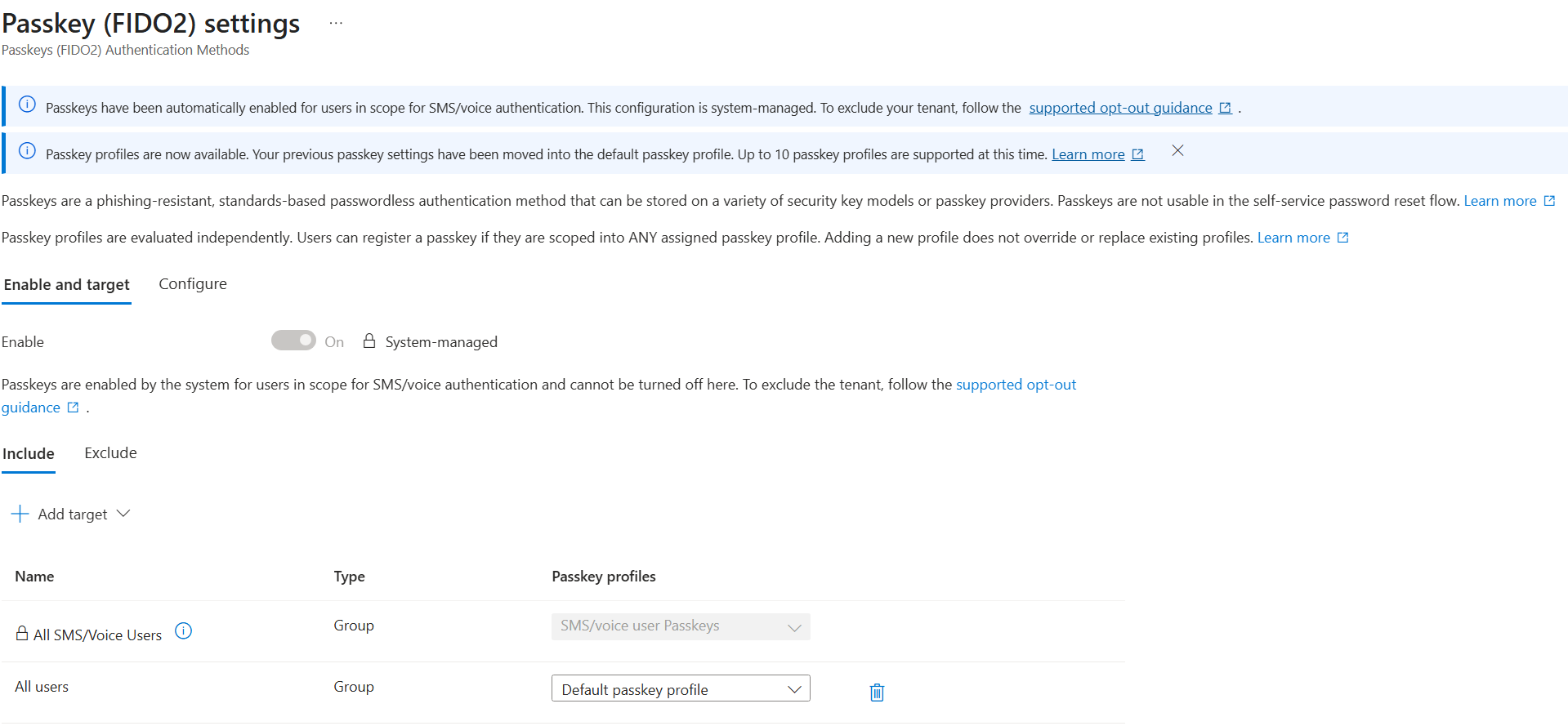
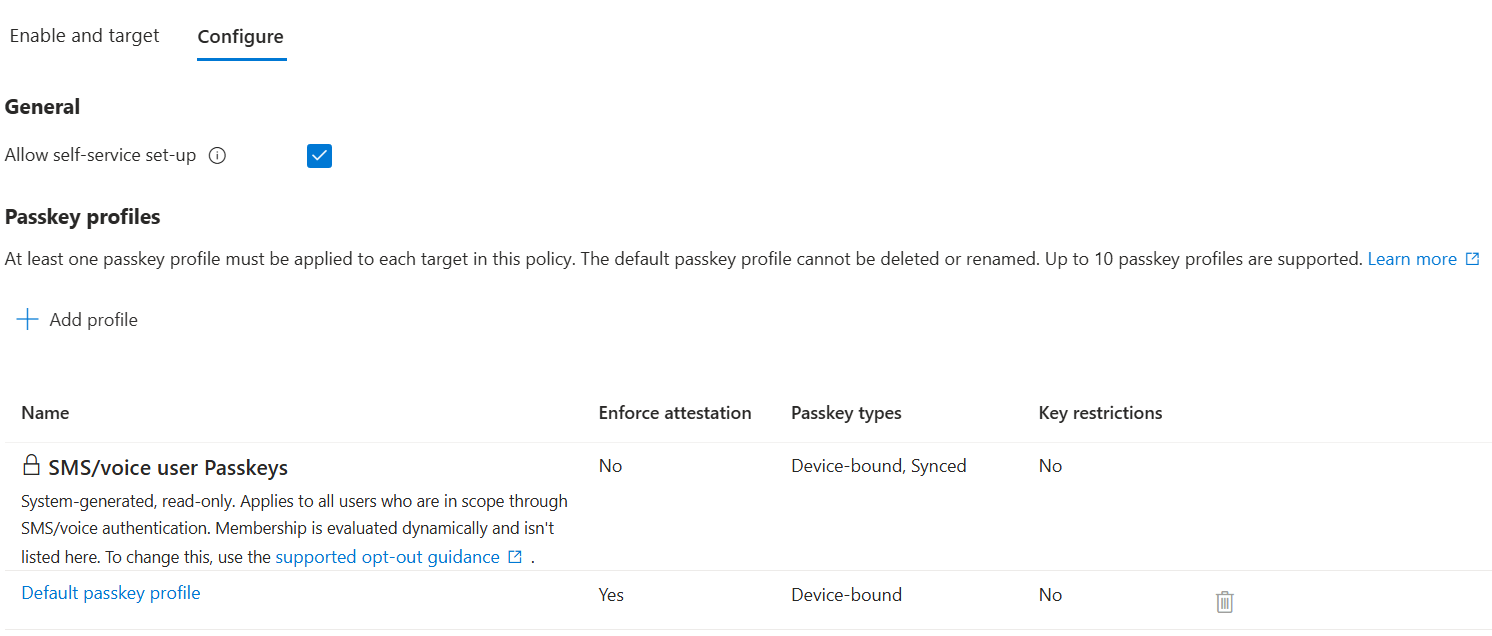
That default can conflict with your design:
- Admins in that profile can register synced or unattested passkeys, even if they're also in a strict profile. Remove them from SMS and voice before retirement reaches your tenant to take them out of it.
- Because Windows passkeys are allowed by default, these users can also create a passkey on a personal PC.
- Guests enabled for SMS or voice are included too (MC1459133).
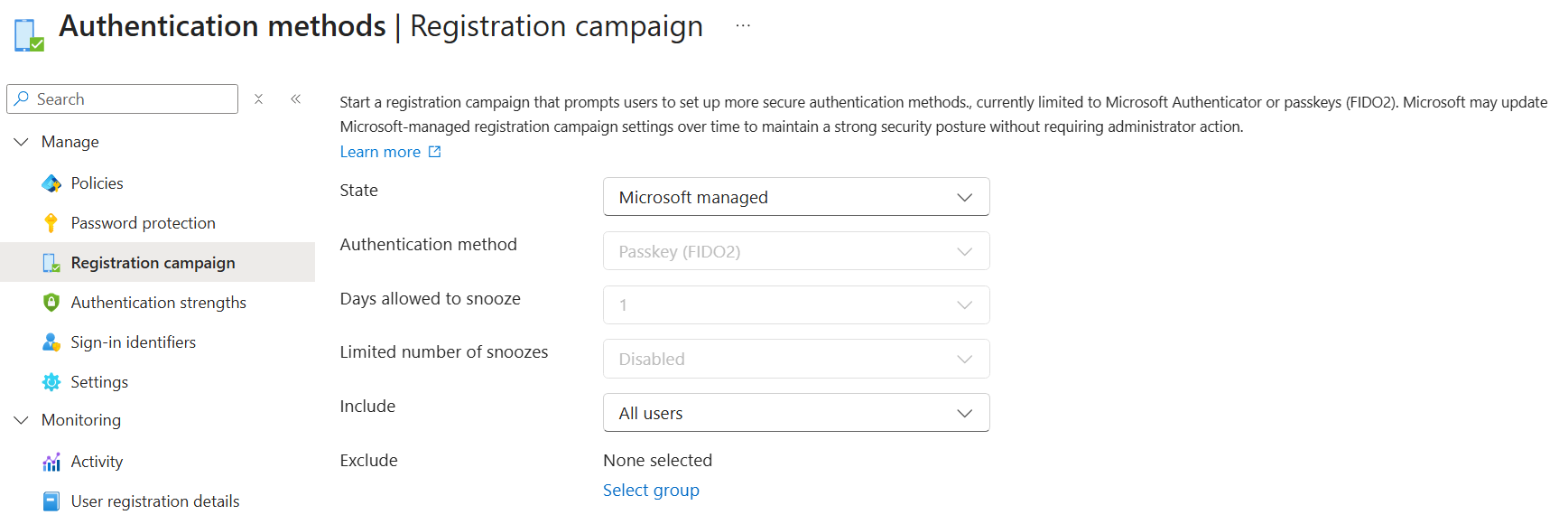
In the Microsoft managed state, Microsoft sets the method and the snooze behaviour (one day, unlimited snoozes), and in tenants that meet the conditions of MC1221452 it targets all MFA-capable users by default. You can still include and exclude groups; set the campaign to Enabled when you want to control the snoozes yourself.
The temporary opt-out (the link on the auto-created profile, or passkeyDynamicMigration in Microsoft Graph) only delayed all this, it doesn't move the retirement dates. You can check where your tenant stands under Entra ID > Authentication methods > Registration campaign.
The way out is the same as for the rest of the migration. Assign users to the passkey profile you designed for their population (for admins, see the privileged accounts section). Once users have registered and tested their passkey and still have enough password reset methods without SMS or voice, remove them from the SMS and Voice calls policies. Microsoft recommends that last step explicitly, because it stops further nudges (retirement FAQ).
Conditional Access: enforce what you registered
The Authentication methods policy decides what users can register, Conditional Access with Require authentication strength decides what they must use. The built-in Phishing-resistant MFA strength accepts passkeys and Windows Hello for Business or a platform credential, but not push, TOTP, a Temporary Access Pass or SMS (authentication strengths).
We use four policy groups:
- An admin policy for privileged users on all resources: a custom strength with an AAGUID allow list. Report-only first, then enforced per wave of admins.
- A registration policy for privileged users on Register security information: a Temporary Access Pass or an existing phishing-resistant method. Report-only doesn't cover user actions, so pilot it enforced.
- Standard users, all resources: the built-in Phishing-resistant MFA strength, rolled out in waves.
- Guests and external users: see the guest section.
Two limitations to keep in mind: you can't combine Require multifactor authentication and Require authentication strength in one policy, and a strength doesn't restrict the initial authentication: a user who starts with a password is then asked for a phishing-resistant method, while signing in with the passkey straight away satisfies both at once (authentication strength limitations).
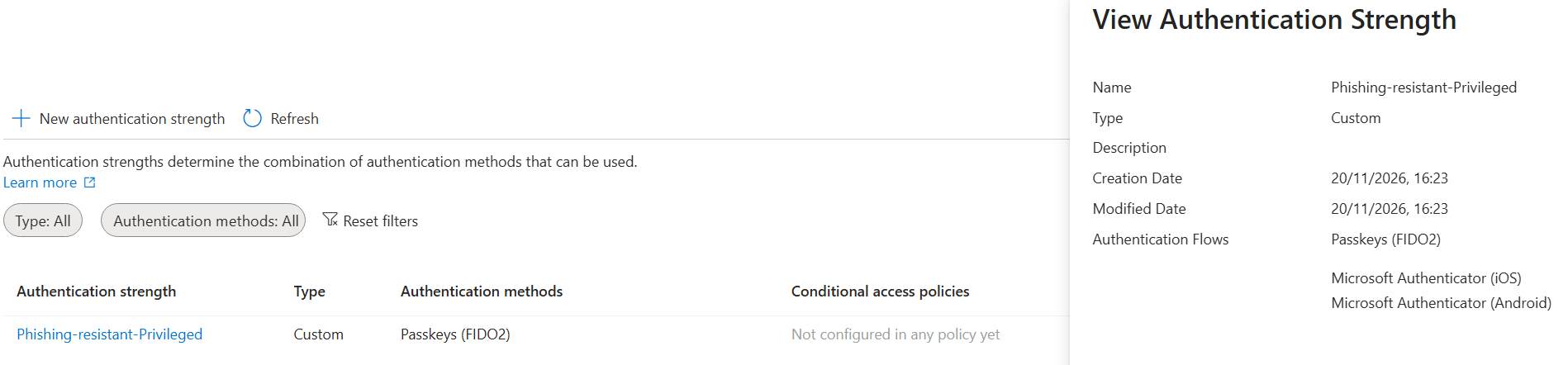
The admin policy uses a custom strength called "Phishing-resistant-Privileged": Passkeys (FIDO2), limited to Microsoft Authenticator for iOS (AAGUID: 90a3ccdf-635c-4729-a248-9b709135078f), Microsoft Authenticator for Android (AAGUID: de1e552d-db1d-4423-a619-566b625cdc84) and your security key models. The policy for designated workstations uses a second strength that also allows Windows Hello for Business.
When Conditional Access blocks passkey registration in Authenticator
The authentication strength loop
An All resources policy that requires phishing-resistant MFA can create a loop. A user without an eligible credential can be asked to use one while trying to register it.
Microsoft’s documented workaround is to exclude the Microsoft Authenticator Credential Registration resource (6aa00308-ea33-4caa-90d6-ae905d8cb51b) from the policy causing the loop. First provision its service principal and opt in the users through Microsoft Graph. Microsoft lists availability for January 2027 (Microsoft’s registration-loop guidance).
The app protection policy block
Microsoft Authenticator can’t satisfy the Require app protection policy grant control on iOS or Android. When that control applies to the registration request, it can block passkey enrolment even if the user has already satisfied MFA (Microsoft’s app protection troubleshooting guidance).
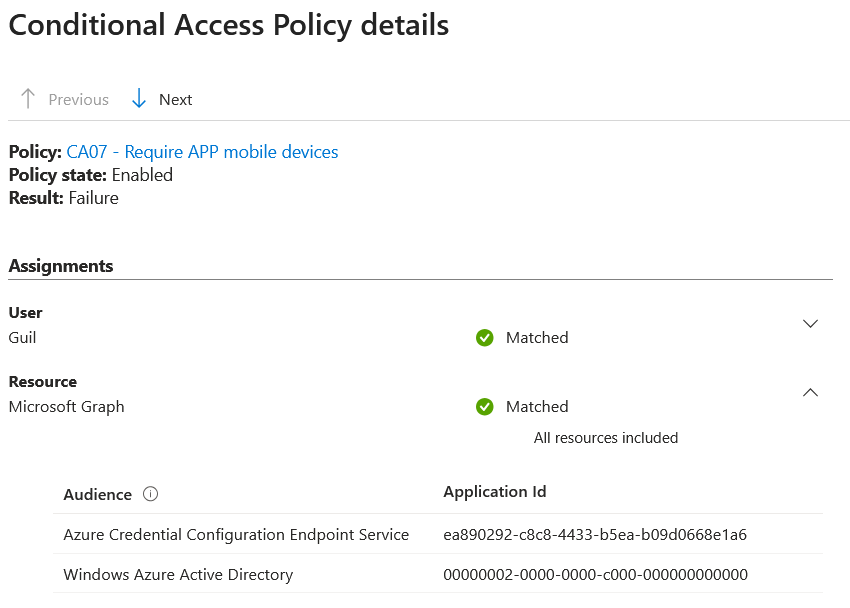
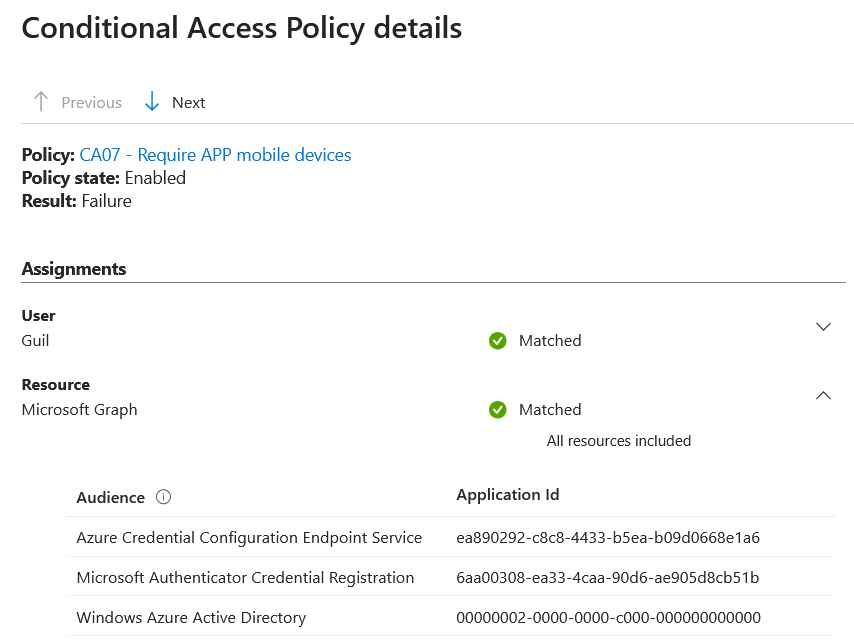
Microsoft lists excluding the Microsoft Authenticator Credential Registration resource from the affected Conditional Access policy as one option for addressing the app protection block. In our November 2026 test, opting in added the new resource to the token audience alongside the Azure Credential Configuration Endpoint Service. The app protection policy still showed Failure in the Entra sign-in logs. Microsoft Authenticator app passkey succeeded in our tenant after we excluded the Azure Credential Configuration Endpoint Service from that Conditional Access policy. The test took place ahead of the planned January 2027 rollout, so we’ll need to retest whether the documented exclusion is sufficient on its own once the rollout reaches our tenant.
Token audience before opt-in:
Token audience after opt-in:
Keep any exclusion narrow. Put the users who still have to register in a group. First enable a copy of the policy for that group, with the same controls plus the exclusion, and check its assignments. Only then exclude the group from the original policy, so there is no gap in app protection. Once they've registered, restore the original coverage before you retire the copy.
An exclusion opens a gap, so registration itself must stay protected. For standard users that's their regular MFA. For admins it's the registration policy, with a custom strength that allows a Temporary Access Pass, Passkeys (FIDO2) and Windows Hello for Business or platform credential.
Migration: find users at risk of losing access
A user is at risk when their only MFA method is SMS or voice: once the retirement reaches them, they get the blocking passkey prompt. Users who also have Authenticator push or TOTP keep signing in, but they stay phishable and may still be nudged on an eligible device and browser as long as they stay enabled for SMS or voice. Keep in mind that a registered method isn't the same as a usable one: it only helps if the user can use it for their apps, on their devices and under your policies. To get a complete picture, you need three sources, because each one answers a different question:
Question | Source | What it tells you |
|---|---|---|
Who is allowed to use SMS or voice? | Microsoft's SMS and voice usage analyzer | A read-only policy scope scanner. It reports the SMS and Voice policy state, included and excluded groups and users, the registration campaign state and the migration state. It doesn't expand group membership, calculate effective users after exclusions, read registered methods or sign-in activity, or verify legacy settings unless the migration is complete. Needs Policy.Read.All and Group.Read.All with Global Reader, Authentication Policy Administrator or Security Reader |
Who has registered which methods? | User registration details | Entra ID > Authentication methods > User registration details, or Graph reports/authenticationMethods/userRegistrationDetails |
Who actually uses SMS or voice? | Sign-in logs and the Authentication methods activity report | Actual usage, within the retention of your logs: 30 days for sign-in logs with Entra ID P1 or P2 |
User registration details
The user registration details report lists the methods each user has registered, whether they hold an admin role and their user type (userRegistrationDetails). You'll find it under Entra ID > Authentication methods > Activity, on the Registration tab. Note that it can be up to 36 hours behind.
To find the users at risk, filter the user list on Methods registered = Mobile phone (and Alternate mobile phone or Office phone) and Passwordless capable = Not capable, then go through the Methods registered column. Users who only have phone methods, possibly with email, security questions, are the ones who will get the blocking prompt. The filter only sets priorities, though. A user whose only other method is device-bound, such as Windows Hello for Business on their PC, counts as passwordless capable but can receive the blocking prompt when that credential isn't available for the sign-in, for example on their iPhone (what happens when SMS and voice retire). Review phone users with only device-bound methods as well. Users who also have Microsoft Authenticator or a software OATH token keep signing in and are your next wave.
Before migrating, check for inactive accounts and confirm with the account owner before you clean anything up.
Legacy policies, security questions and SSPR
Before you start removing SMS and voice, check the migration state under Entra ID > Authentication methods > Policies > Manage migration. As long as it is set to Pre-migration or Migration in progress, Entra ID still respects the legacy MFA and SSPR policies next to the Authentication methods policy, and a user who is enabled for a method in any of those policies can still use it. Disabling SMS and voice in the Authentication methods policy is then not enough.
Since 30 September 2025, Microsoft no longer lets you manage authentication methods in the legacy MFA and SSPR policies. If "Text message to phone" or "Call to phone" is still ticked there, you may not be able to untick it, and setting the migration to Migration complete is then the way to stop it from applying. Until you do, every user counts as enabled for SMS or voice, because the legacy MFA settings are tenant-wide, so every user was also pulled into the 1 September auto-enablement.
We saw this at a customer: SMS was off in the Authentication methods policy but still ticked in the legacy settings, and the migration had stayed in progress because a few users still reset their password with security questions. Move those users to another reset method before you set Migration complete. Security questions retire for SSPR in March 2027 anyway (security questions).
Password reset follows its own timeline. When the retirement reaches a user, SMS and voice stop working for MFA, but a phone number the user already registered keeps working for password reset for another 50 days. During those 50 days users can't add or change a phone number, and afterwards SMS and voice are gone from SSPR as well (MC1536049). That grace period only helps users who are still enabled for SMS or voice. Once the migration is complete, the Authentication methods policy is the only one that counts: if SMS or voice is disabled there for a user, it no longer works for their password reset either. So before you remove a phone method, make sure the user has another way to reset their password.
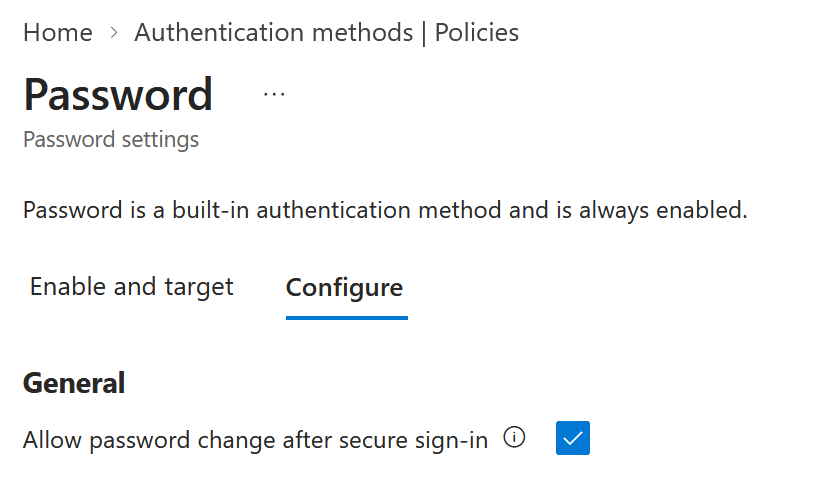
Passkeys can't be used to reset a password, and Microsoft Authenticator and OATH tokens together count as only one reset method. If your policy requires two methods, a user with Authenticator and SMS is left with one when SMS goes, and the default administrator policy requires two. The "Allow password change after secure sign-in" setting helps here: a user who signs in to My Sign-Ins with a supported passwordless method, such as a passkey, can set a new password without the old one and without SSPR. It's off by default, applies to the whole tenant and requires Entra ID P1 or P2 for the users (MC1437671).
Phased plan
Microsoft's passkey deployment guide covers the planning in more depth. This is the order we use:
- Now: disable SMS as a first factor and run the inventory with the three sources above.
- Policy migration: verify that the intended users can complete MFA and SSPR under the Authentication methods policy, then set the migration to Migration complete.
- Design: create the passkey profiles and authentication strengths, prepare the Conditional Access policies and test the emergency access accounts.
- Administrators, following the sequence below. Done when every admin signs in to an admin resource with an attested passkey under the enforced admin policy.
- Standard users in waves, with the registration campaign set to Enabled and a limited number of snoozes, Microsoft's end-user communication templates, for example, and a TAP for users without a usable phone. A wave is done when its users sign in to their normal apps and devices with the new method and still have enough eligible password reset methods without SMS, voice or security questions. Only then remove them from the SMS and Voice calls policies.
- Exceptions: done when the telephony provider is configured and the affected users' MFA and SSPR are tested before their retirement date and before their SSPR transition ends.
Administrator sequence
- Test the emergency access accounts and confirm that they are excluded from the admin policies.
- Pilot the registration policy enforced with a test admin who only has a Temporary Access Pass, including a recovery test, then extend it to all admins.
- Per wave, confirm that each admin can enrol with a TAP and can still reset their password without SMS or voice. Then remove them from SMS and voice, which also takes them out of the profile Microsoft created for SMS and voice users, keep them in the strict profile only and check their effective assignments. Do this before retirement reaches your tenant: from then on, SMS and voice group targeting is read-only until you configure a telephony provider.
- Have them register an attested passkey, check in Microsoft Graph that it shows attestationLevel attested and the expected AAGUID, and sign in to an admin portal with it. Then enforce the admin policy for that wave, and check a fresh sign-in and its Conditional Access result before you delete anything. If you split the admin policy for workstations, test Windows Hello for Business on a designated workstation and confirm that an unregistered device asks for an approved passkey.
- Last, delete the unattested passkeys they registered before.
Guests and external users
For most B2B guests, the best passkey is the one they already have in their home tenant. Rather than asking them to register a second credential in your tenant, trust the MFA from their home tenant through your cross-tenant access settings. Keep in mind that Entra ID distinguishes two kinds of guests, and they don't follow the same timeline:
Internal guest | External (B2B) user | |
|---|---|---|
Definition | Account in your tenant with user type Guest that authenticates against your tenant | Account that authenticates with its home tenant, email one-time passcode, a Microsoft account or another identity provider; its user type can be Guest or Member |
SMS and voice retirement | From 1 February 2027 | From 1 July 2027 |
Resource-tenant passkeys | Rolling out from late October to late November 2026 | Timing not yet announced in MC1459133; Microsoft's FAQ plans B2B passkey support by the end of 2026 |
Register an Authenticator passkey in the resource tenant | Supported | Not supported |
Temporary Access Pass issued by your tenant | Supported | Not supported |
The rollout details come from MC1459133 and the retirement FAQ.
- Enable inbound MFA trust for the Entra ID partner organisations you work with. With trust enabled, a guest who signed in at home with a FIDO2 key or Windows Hello for Business meets your Phishing-resistant MFA strength without registering anything in your tenant. Without trust, the guest has to complete MFA in your tenant.
- You can issue a Temporary Access Pass to internal guests, but not to external guests. An external guest from an Entra partner whose inbound MFA you trust can still sign in with a TAP issued by their home tenant, when that method satisfies the strength you require.
- Authentication strengths only apply to guests who authenticate with Entra ID. For guests who use email one-time passcodes, Google or SAML/WS-Fed federation, or a Microsoft personal account, you have to use the Require multifactor authentication grant control instead (MFA strength for external users).
- Guests who were enabled for SMS or voice were also auto-enabled for all passkey types. Excluding them from the Passkey (FIDO2) policy doesn't stop this as long as they remain enabled for SMS or voice in the Authentication methods policy or the legacy MFA settings (MC1459133).
- Before you start, run an access review on inactive guests. Every stale guest account you remove is one less phone-only account to chase.
Conclusion
The end of Microsoft-provided SMS and voice gives you a hard deadline, but SMS sign-in is being abused right now, so that is the first thing to switch off. After that, the retirement is a good opportunity to do what most organisations should have done anyway: move everyone to phishing-resistant authentication, with the strictest controls on the accounts that matter most, and keep a paid telephony provider only for the few users who really can't do without SMS or voice.
Let's Connect
Are you in need of assistance from our Cloud Experts, or want to discuss how these principles apply to your organization? Don't hesitate to fill out the contact form below!